

Create your account and set up your workspace
Sign up with your work email, verify with a one-time code, and answer four quick questions to create your hiring workspace.
Signing up takes about two minutes. There is no password: RoundOne emails you a six-digit code each time you sign in. Once you are in, a short setup wizard creates your workspace and tunes candidate scoring to your team.
Before you begin
- Your work email address. You will need to read a code from that inbox.
- The name of the company or agency you hire for. It becomes the name of your workspace.
No credit card
CV screening is free and unlimited on every plan, so nothing in this guide asks for payment details. You only start a 14-day free trial later, when you launch a voice agent.
Create your account
Open the sign-up page
Go to roundone.ai and click Sign up free in the top navigation, or open roundone.ai/sign-in?tab=register directly.
You can continue with Google or LinkedIn, or use your work email. The rest of this guide follows the email route.
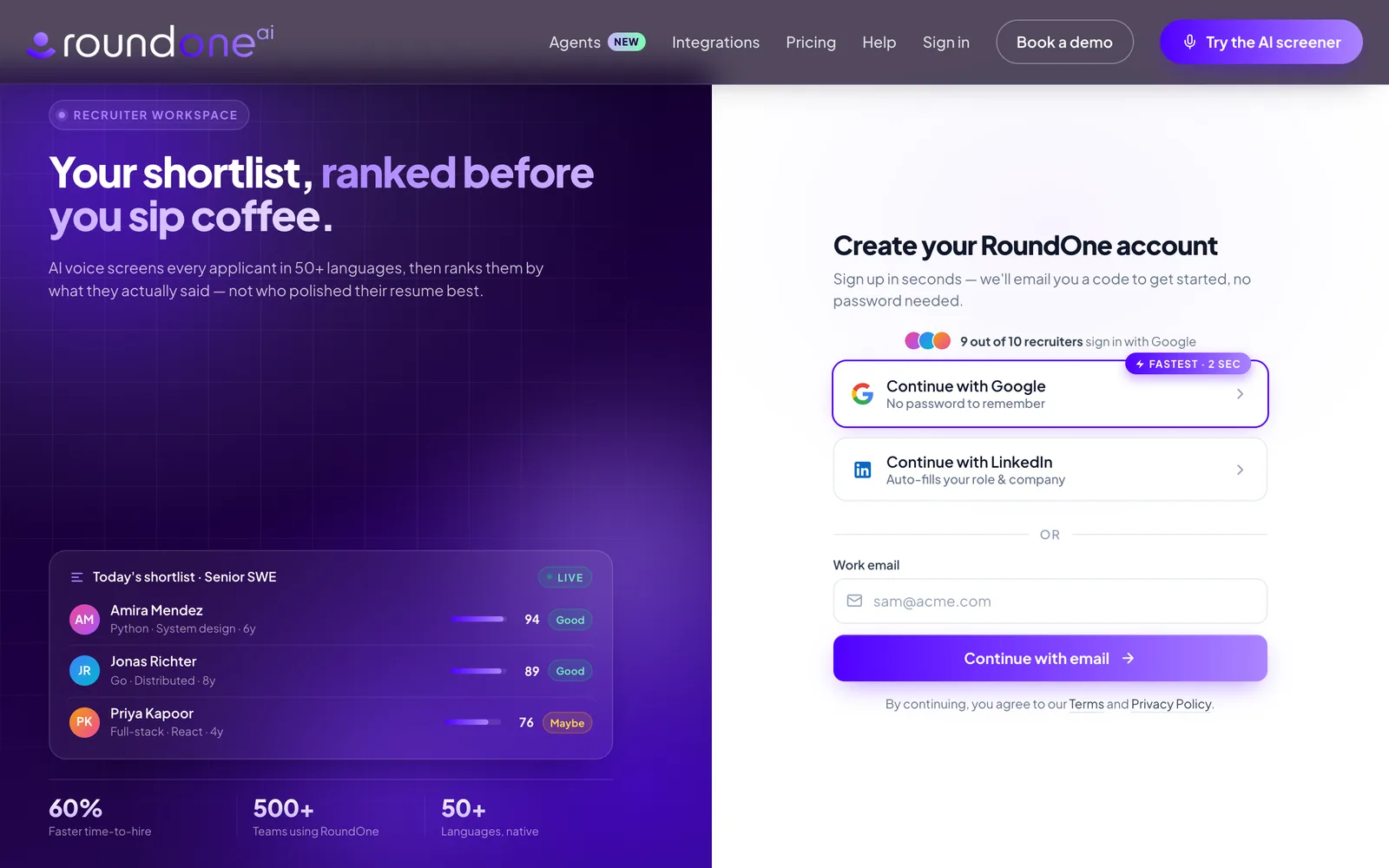
Enter your work email
Type your email into the Work email field and click Continue with email. RoundOne sends a six-digit sign-in code to that address.
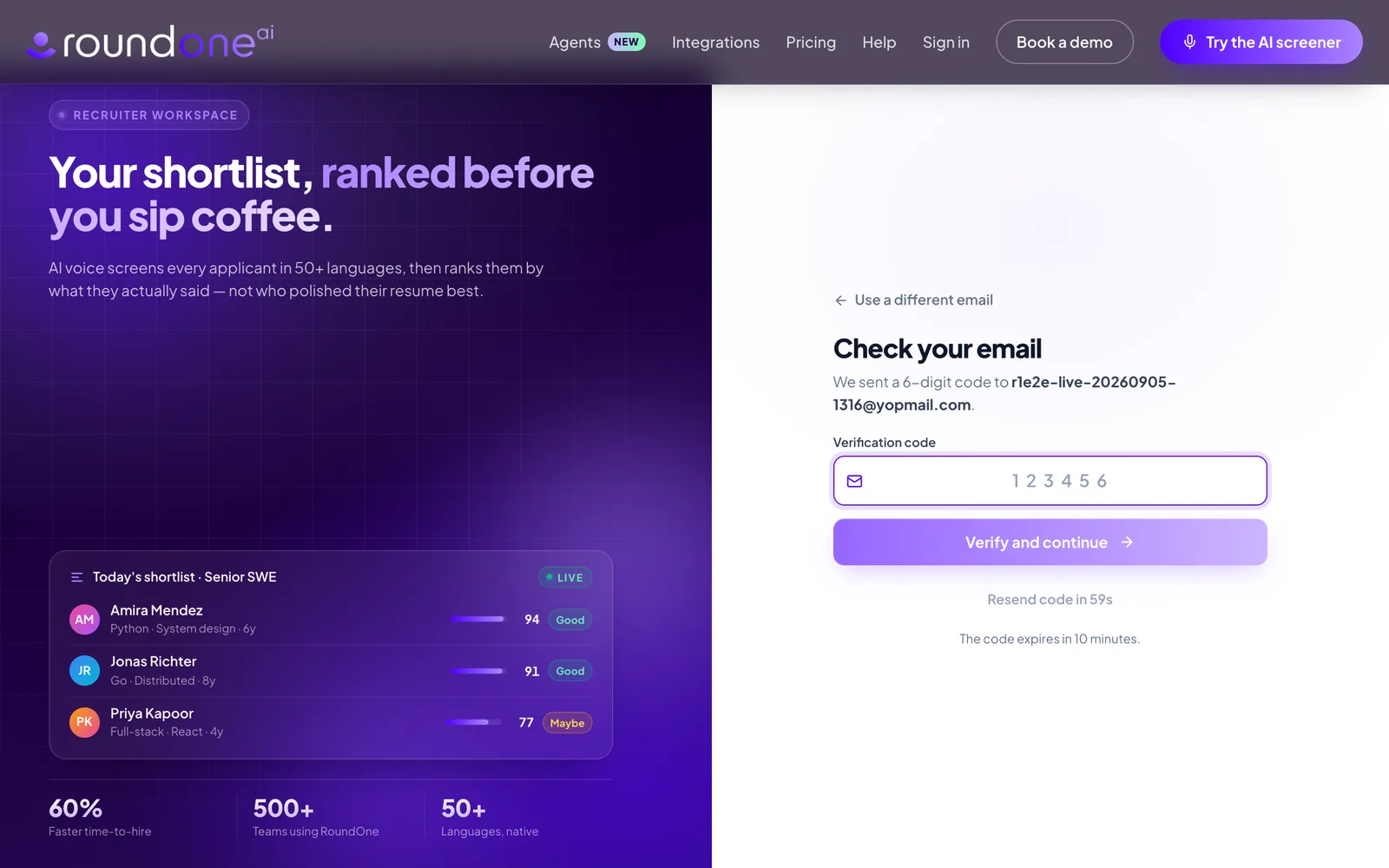
Enter the code from your inbox
Open the email titled Your RoundOne sign-in code from RoundOne AI Team. Copy the six digits into the Verification code field. The form submits on its own as soon as the sixth digit is entered.
The code expires after ten minutes and works once. If it does not arrive within a minute, check your spam folder, then click Resend code. Only the newest code is valid.
Set up your workspace
New accounts go straight into the setup wizard. Every step also works from the keyboard: press Enter to continue and use the number keys to pick an option. Save & exit in the top right keeps your progress if you need to stop.
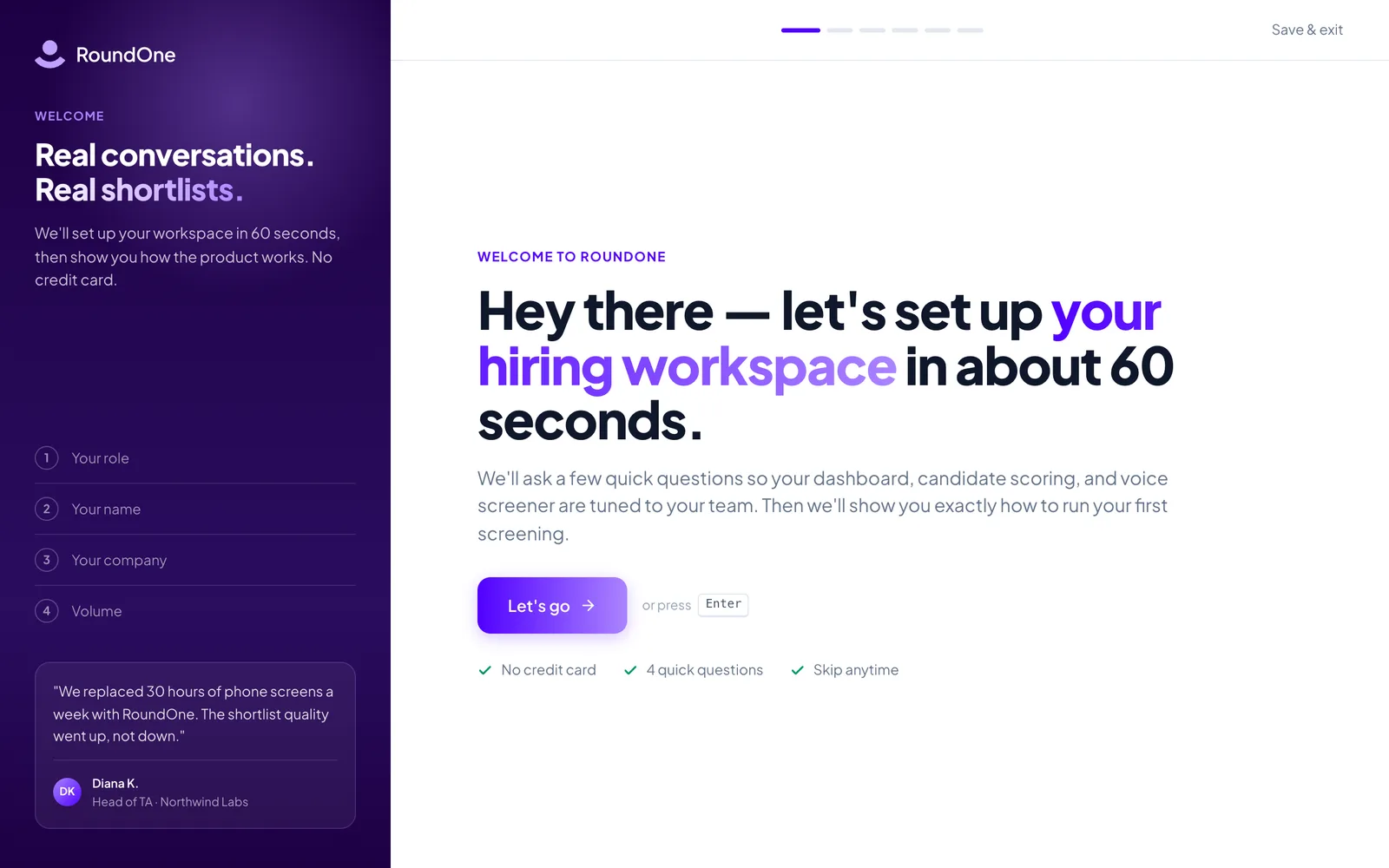
Your role
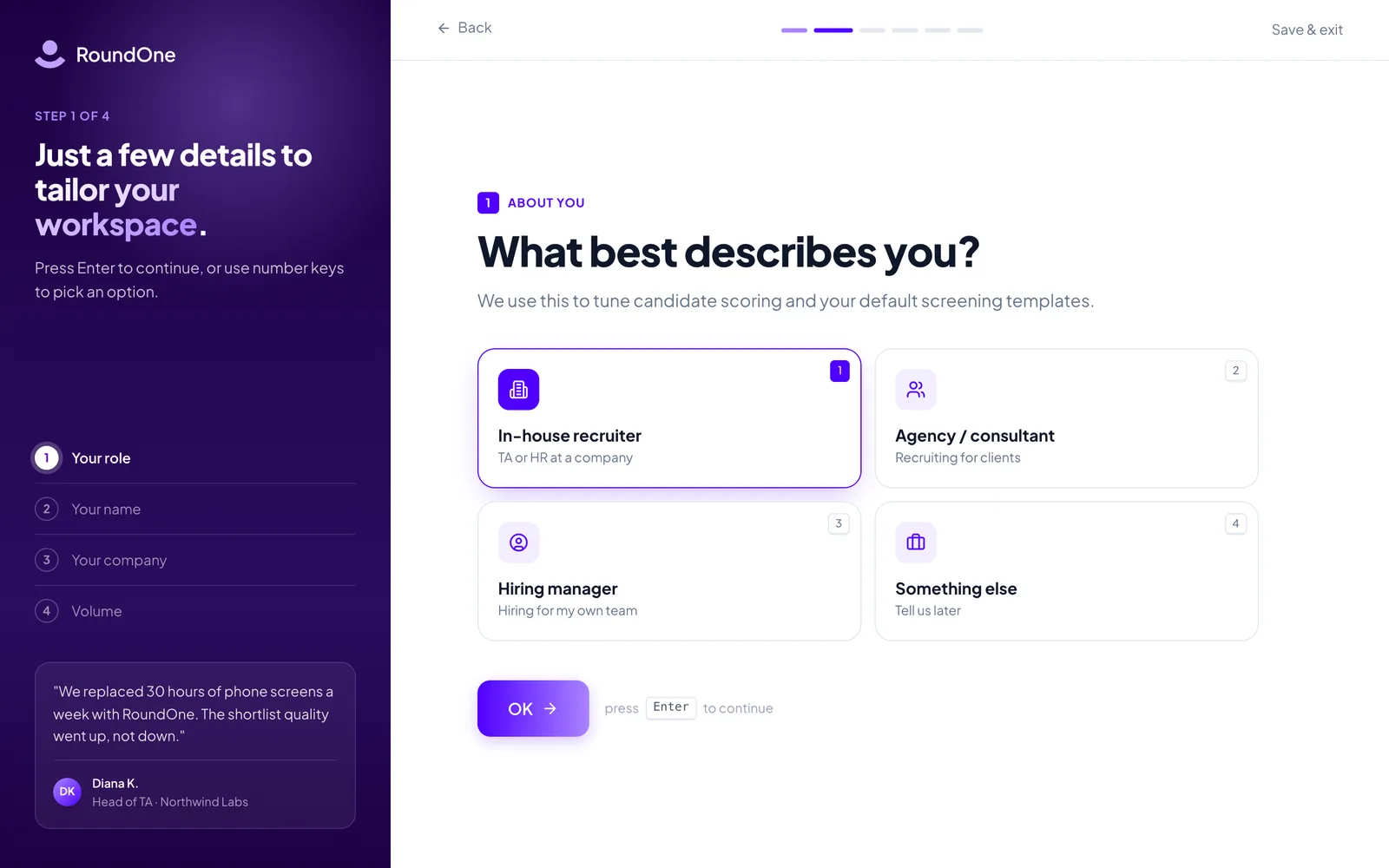
Pick the option that best describes you: In-house recruiter, Agency / consultant, Hiring manager, or Something else. RoundOne uses this to tune candidate scoring and your default screening templates. Click OK.
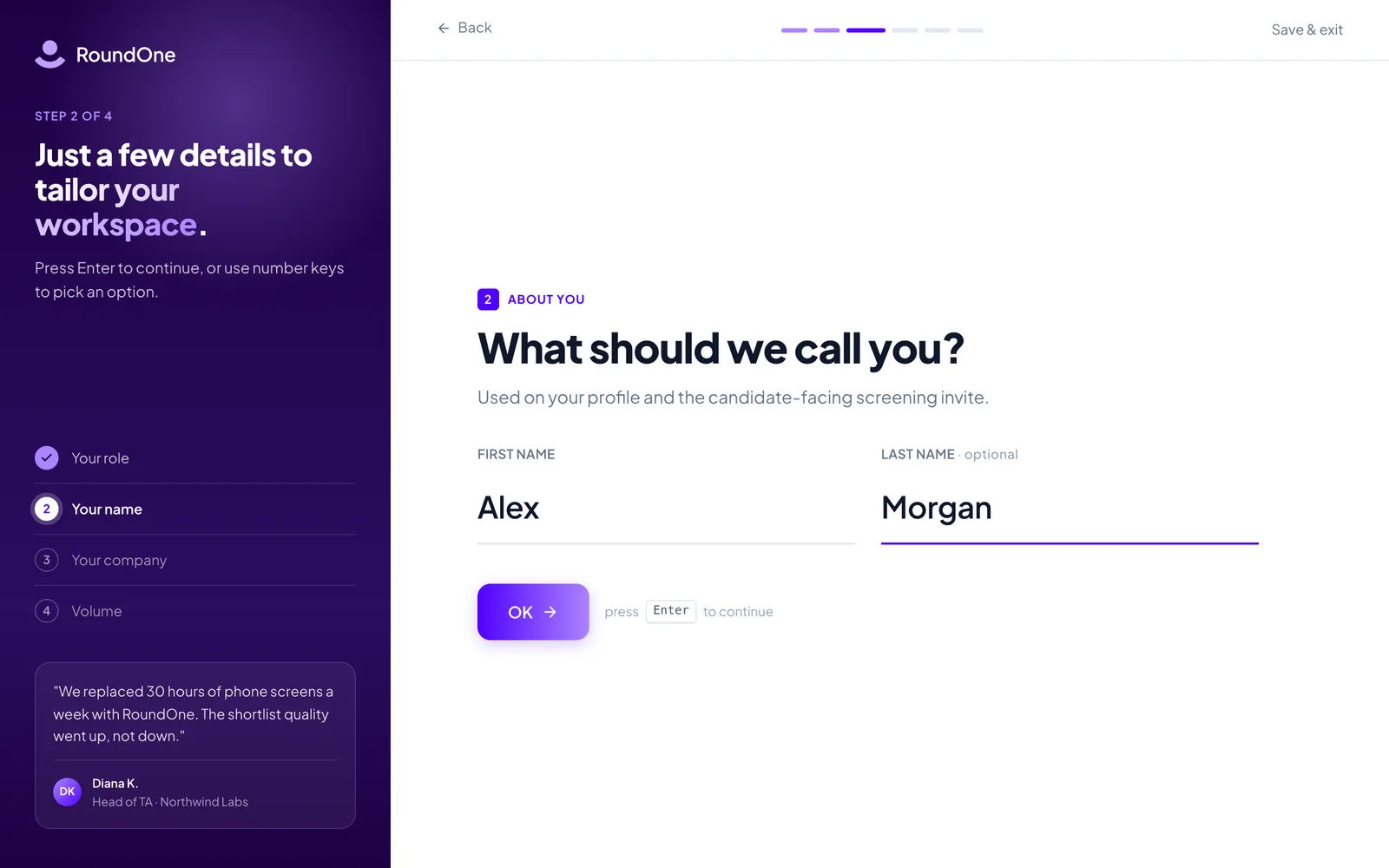
Your name
Enter your first and last name. They appear on your profile and on the screening invites candidates receive. Click OK.
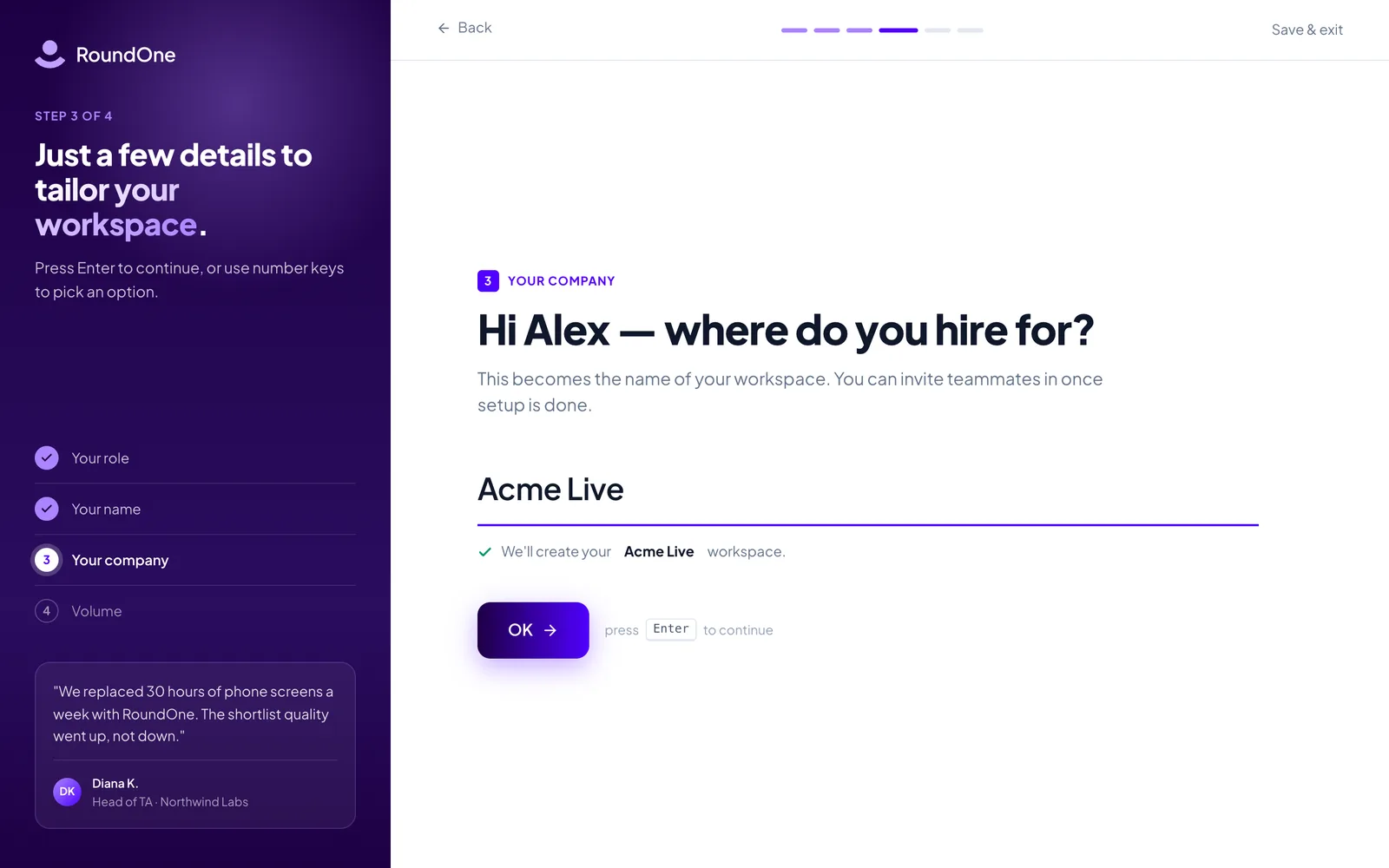
Your company
Enter the company or agency you hire for. This becomes the name of your workspace, and you can invite teammates into it once setup is done. Click OK.
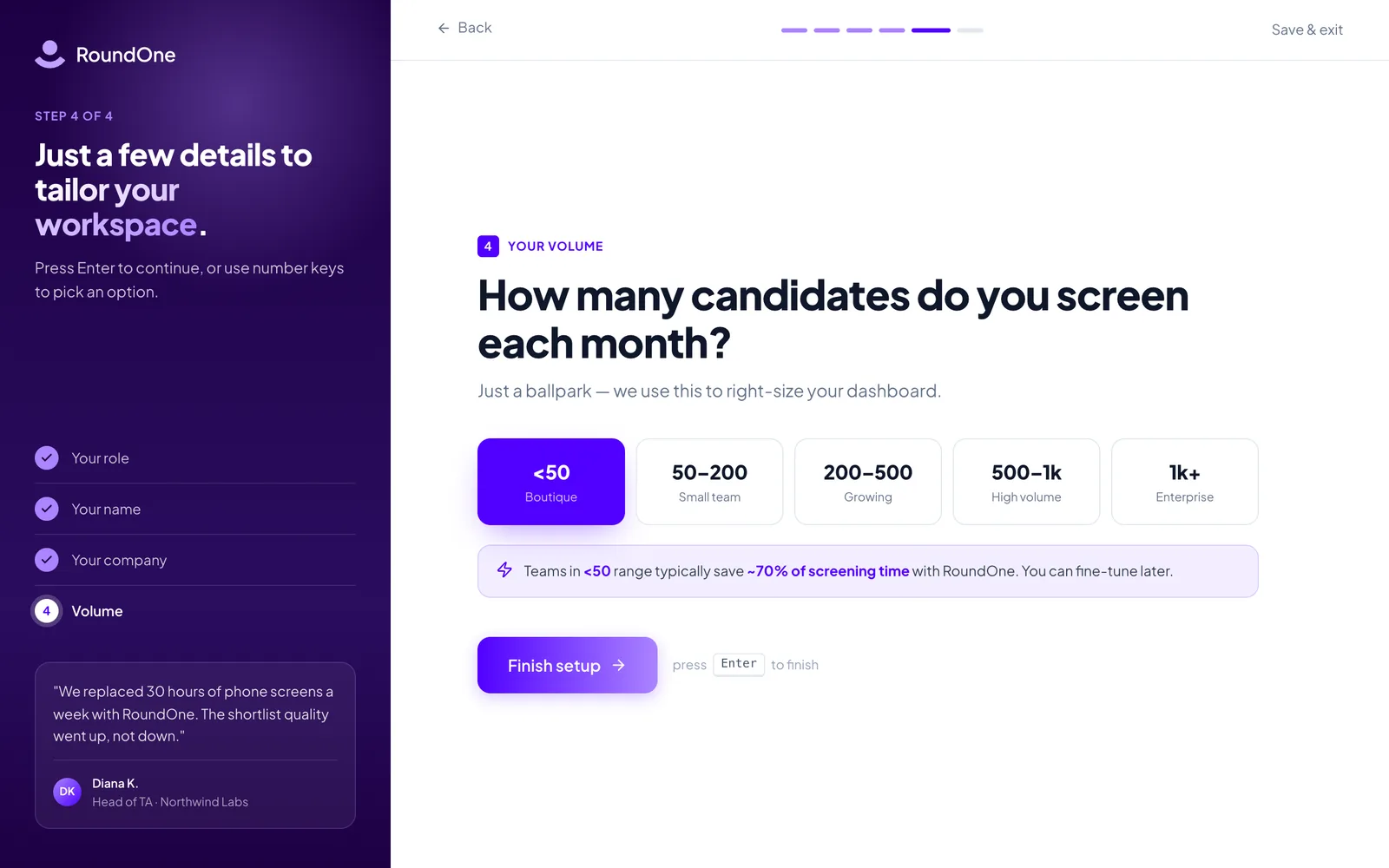
Your volume
Choose roughly how many candidates you screen each month, from under 50 to 1k+. It is only used to right-size your dashboard and can be changed later. Click Finish setup.
Confirm and create your workspace
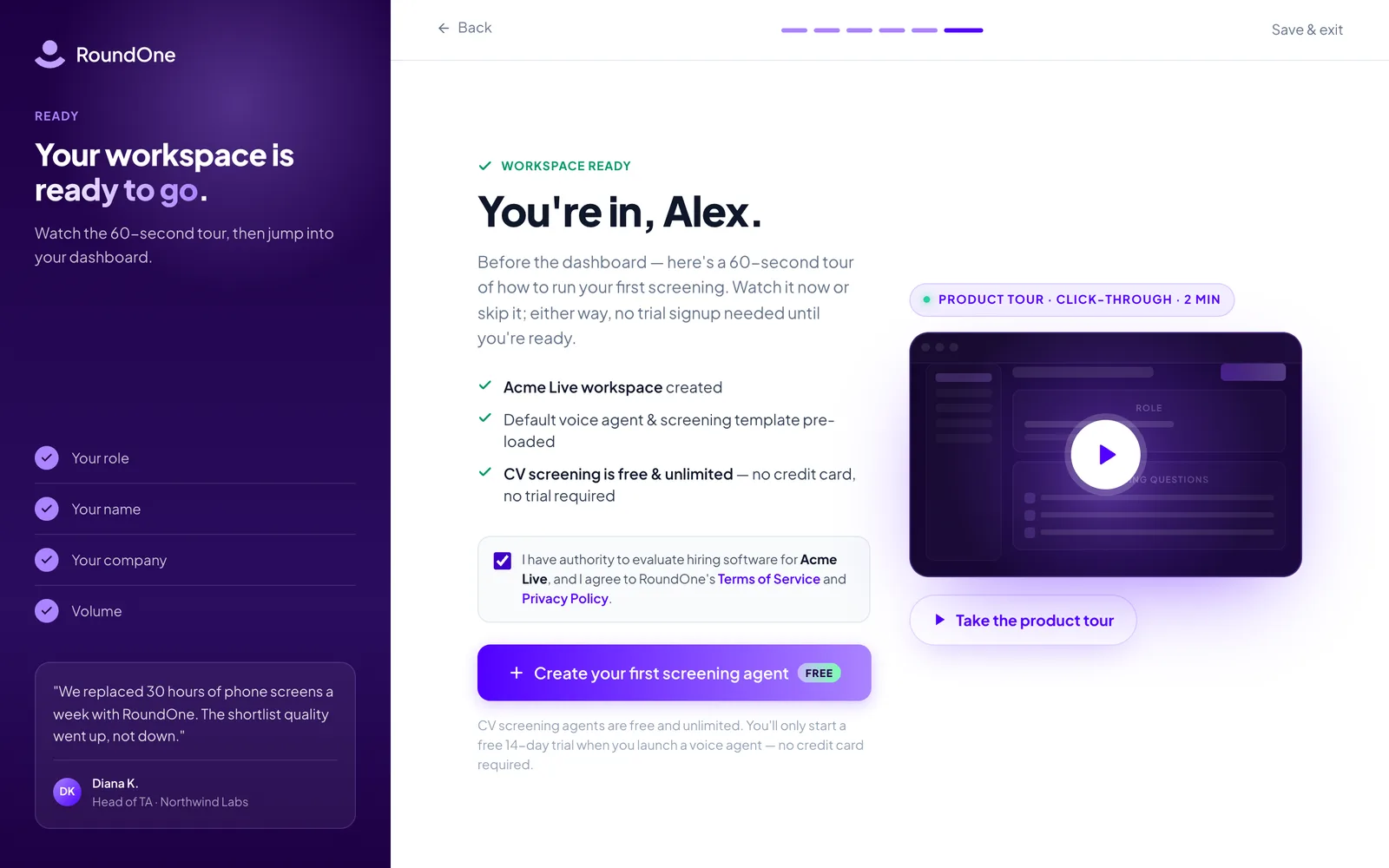
The final screen confirms your workspace is ready. Tick the box to confirm you have authority to evaluate hiring software for your organisation and that you agree to the Terms of Service and Privacy Policy. The button stays disabled until you do.
Click Create your first screening agent. You can also watch the two-minute product tour from this screen.
What you see next
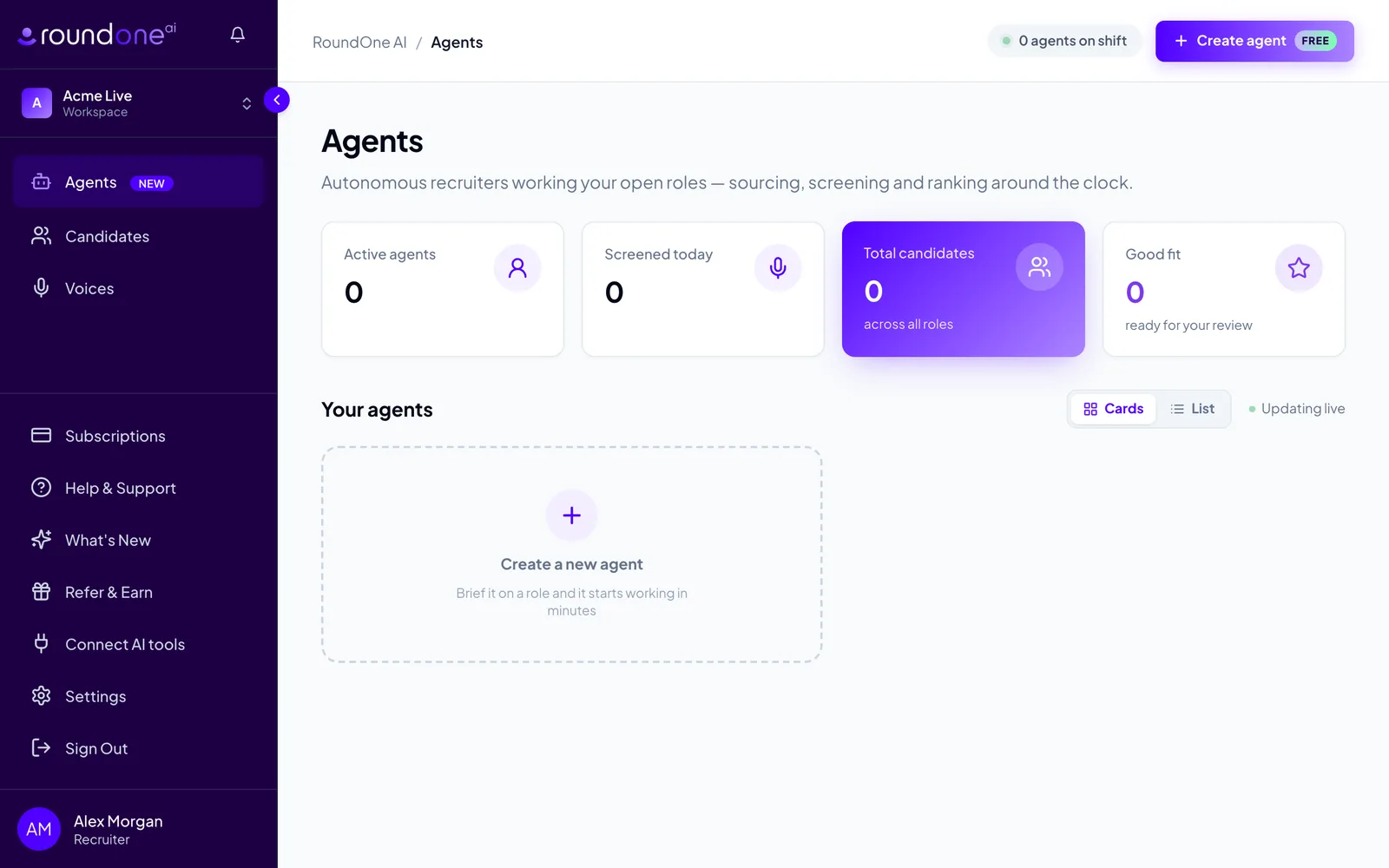
You land in your new workspace on the Agents page. The sidebar shows your workspace name at the top and your profile at the bottom, and the Create agent button starts your first screening agent.
Next: Create your first screening agent.
Signing in later
Go to roundone.ai/sign-in, enter your email, and type the code you receive. There is no password to remember or reset. If you signed up with Google or LinkedIn, use the same button each time.
Troubleshooting
- The code email has not arrived. Wait a minute, check spam and quarantine folders, then click Resend code. Some company mail filters delay unknown senders; ask IT to allow
hello@roundone.ai. - "That code didn't work." Older codes stop working when a new one is requested. Use the digits from the most recent email only.
- I closed the wizard before finishing. Sign in again. Until your workspace has a name, RoundOne takes you back to setup automatically.
- I used the wrong email. Click Use a different email on the code screen before verifying. After sign-up, invite the correct address as a teammate from your workspace settings.