

Connect Ashby
Set up the native Ashby integration so recruiters can order a RoundOne screening from an interview plan and see the score, summary and report link on the candidate in Ashby.
RoundOne is an assessment partner inside Ashby. Once connected, "RoundOne AI" appears as an assessment activity you can add to any job's interview plan. When a candidate reaches that step, Ashby orders the screening, RoundOne invites the candidate, and the score comes back onto the candidate's Ashby profile along with a summary note and a link to the full report.
Setup takes about five minutes and needs an Ashby admin and a RoundOne organisation owner or admin. You will copy two keys: one from RoundOne into Ashby, and one from Ashby into RoundOne.
Watch the walkthrough
Prefer to watch? This six-minute video covers the whole flow: connecting the two platforms, creating a screening agent from an Ashby role, adding RoundOne to the interview plan, starting an assessment for a candidate and reading the result back in Ashby.
If the video does not load, watch it on YouTube. The written steps below cover the same flow.
Before you begin
- You are an Ashby admin (you can open Admin → Integrations).
- You are an owner or admin of your RoundOne organisation. Team members can view the connection but cannot change it.
- At least one screening agent exists in RoundOne. Ashby lists your agents as the assessments recruiters can pick.
Two keys, two directions
Ashby calls RoundOne using a RoundOne key you paste into Ashby. RoundOne writes results back using an Ashby API key you create in Ashby and paste into RoundOne. The RoundOne key always starts with ro_ashby_; the Ashby key is a long string of letters and numbers. If you paste one where the other belongs, RoundOne tells you.
Steps
Open the Ashby card in RoundOne
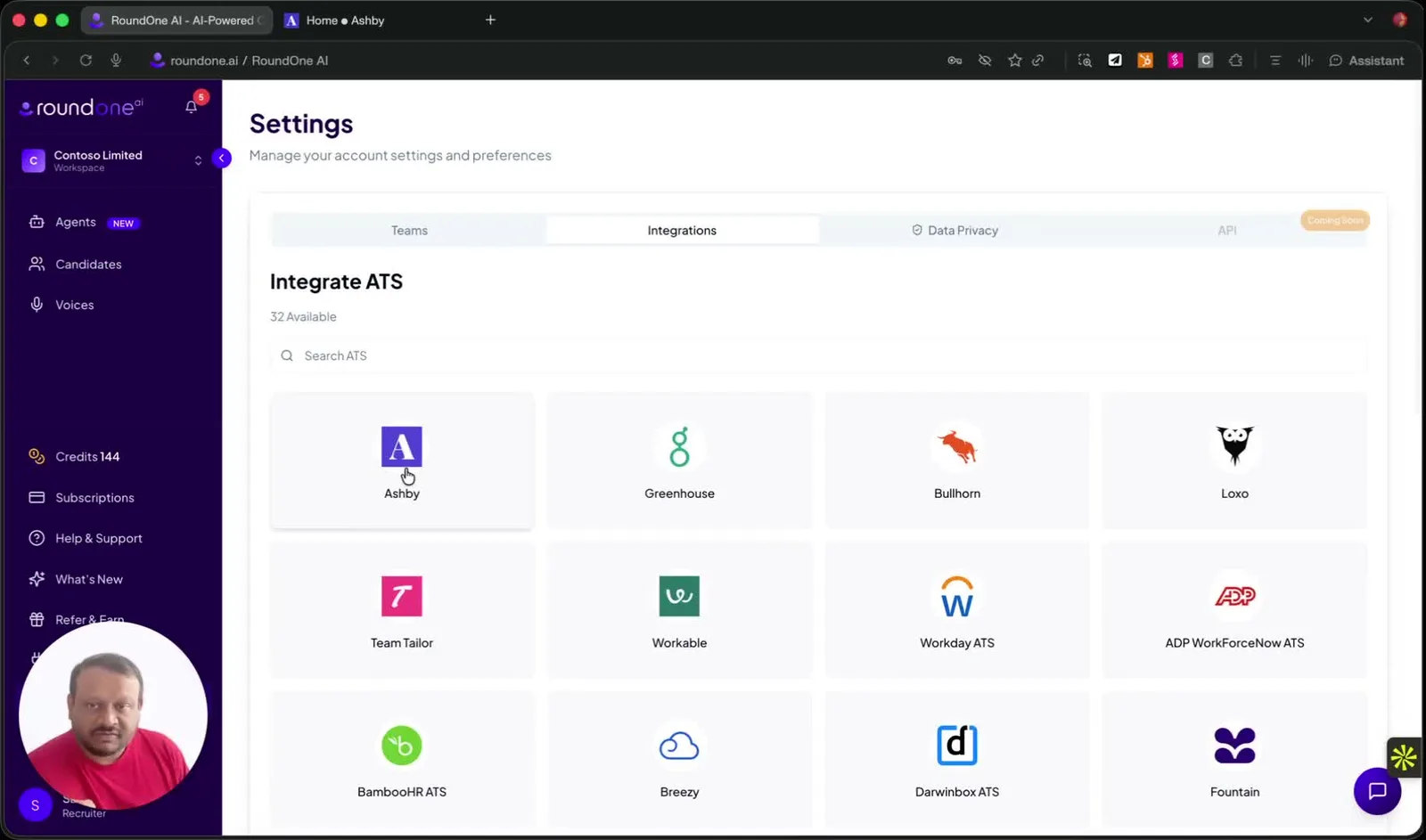
In RoundOne go to Settings → Integrations and click the Ashby tile. The Connect Ashby card opens with a checklist of the four steps below. The checklist ticks itself off as you go, so you can close the card and come back at any point.
Generate your RoundOne key
Under 1. Your RoundOne key, click Generate key and copy it.
For security the key is shown only once. If you lose it, click Rotate key to issue a new one and paste the new key into Ashby; screenings already in progress are not affected.
Create an API key for RoundOne in Ashby
In Ashby go to Admin → Integrations → API Keys and click + New.
- Give it a name, for example "RoundOne API Key".
- Under Integration Partner, choose RoundOne AI. Ashby pre-fills the permissions RoundOne needs; you do not have to change them.
- Click Create API Key and copy the key Ashby shows. Like the RoundOne key, it is shown once.
Back in RoundOne, paste it under 3. Ashby API key and click Save. RoundOne checks the key with Ashby immediately and shows Verified with Ashby when it works. If Ashby rejects it, you most likely pasted your RoundOne key by mistake; paste the Ashby one.
Enable RoundOne AI in Ashby
In Ashby go to Admin → Integrations → Integrations, find RoundOne AI under Assessments and open it.
- RoundOne AI API Key: paste the RoundOne key from step 2.
- Ashby API Key: the key you created in step 3 is already selected. If you have several, pick the one you named for RoundOne.
- Staging Base URL: leave empty. Only fill this in if RoundOne support asks you to point Ashby at a test environment.
Save. The card in RoundOne now shows that Ashby has used your key, and the Custom Fields section in Ashby loads without an error.
Activate the connection
In RoundOne, click Activate under 4. Activate. The Ashby tile on the Integrations page now shows Connected.
Until you activate, Ashby can list your agents but cannot order screenings; a recruiter who tries sees a message asking them to activate the connection in RoundOne first.
Creating agents from Ashby jobs
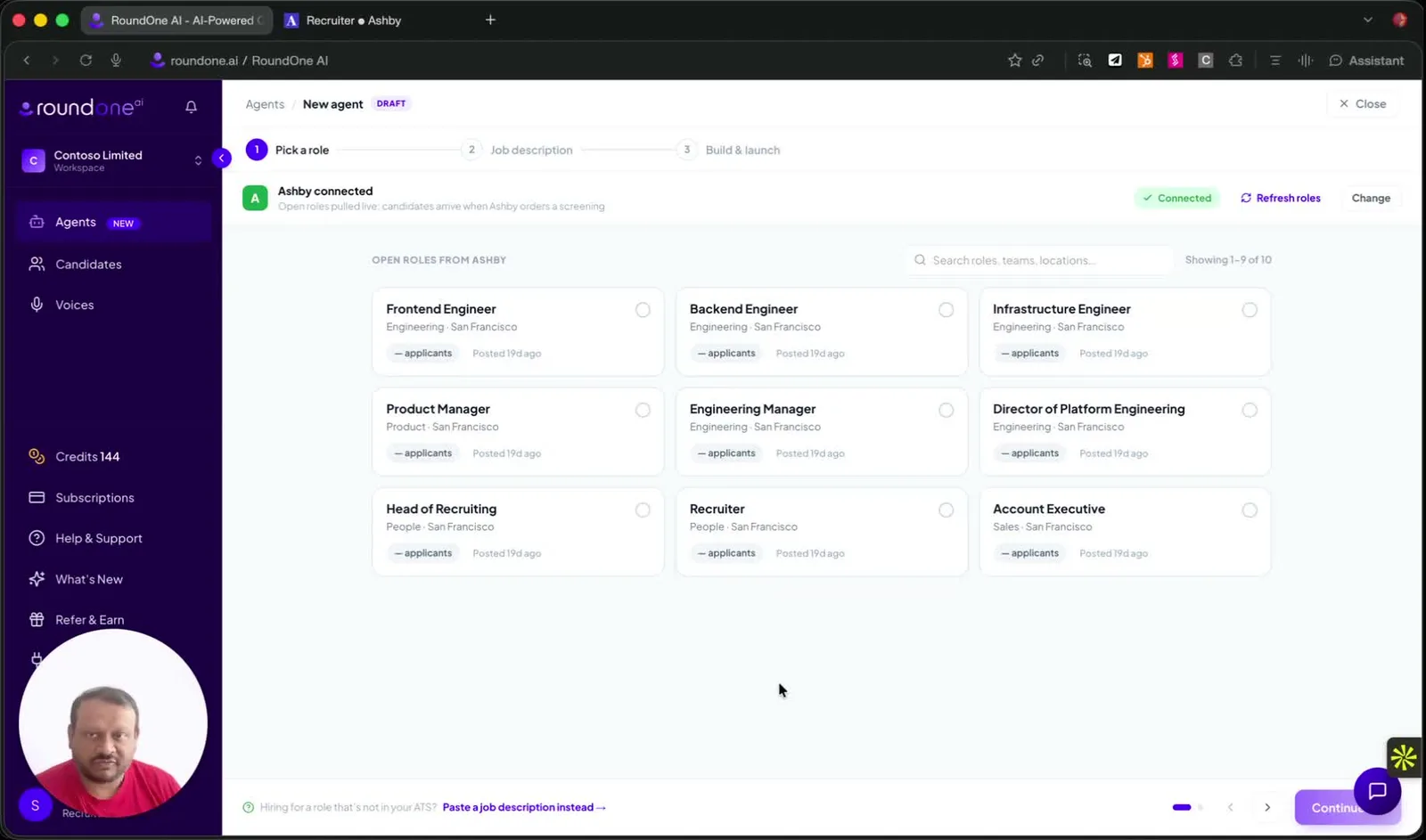
Once the connection is active, creating a new agent in RoundOne offers your open Ashby roles on the Pick a role step, complete with the job description from the posting. Pick one and click Continue; RoundOne drafts the screening from it. Roles without a published posting still appear; paste the description in yourself.
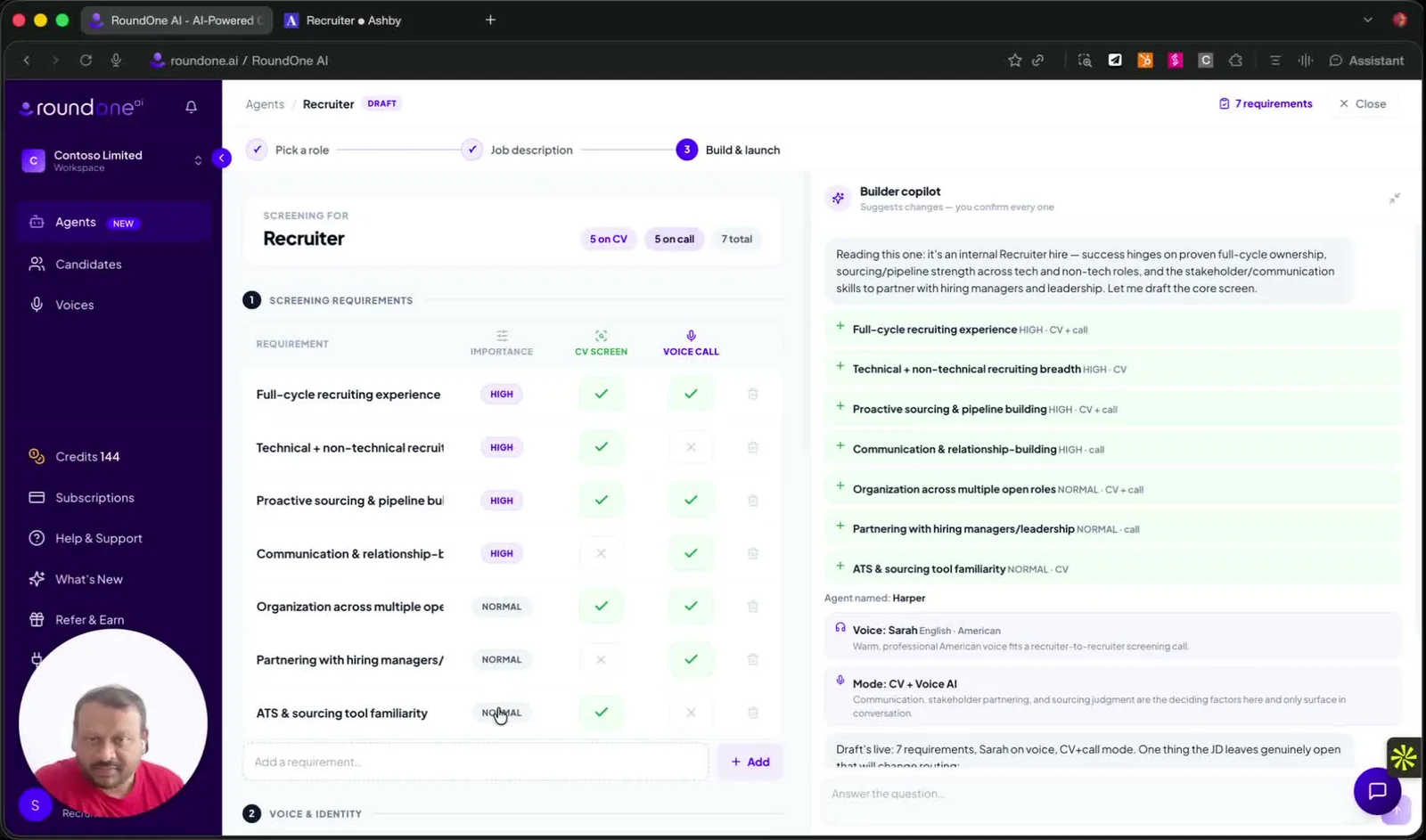
On the Build & launch step, review the drafted requirements and check which ones are assessed on the CV screen, on the voice call, or both. The Builder copilot explains its draft and asks about anything the job description leaves open. Name the agent, pick a voice and launch it. Do this once per Ashby role you want to screen for; the agent's name is what recruiters see in Ashby.
Using it in Ashby
Add RoundOne to an interview plan
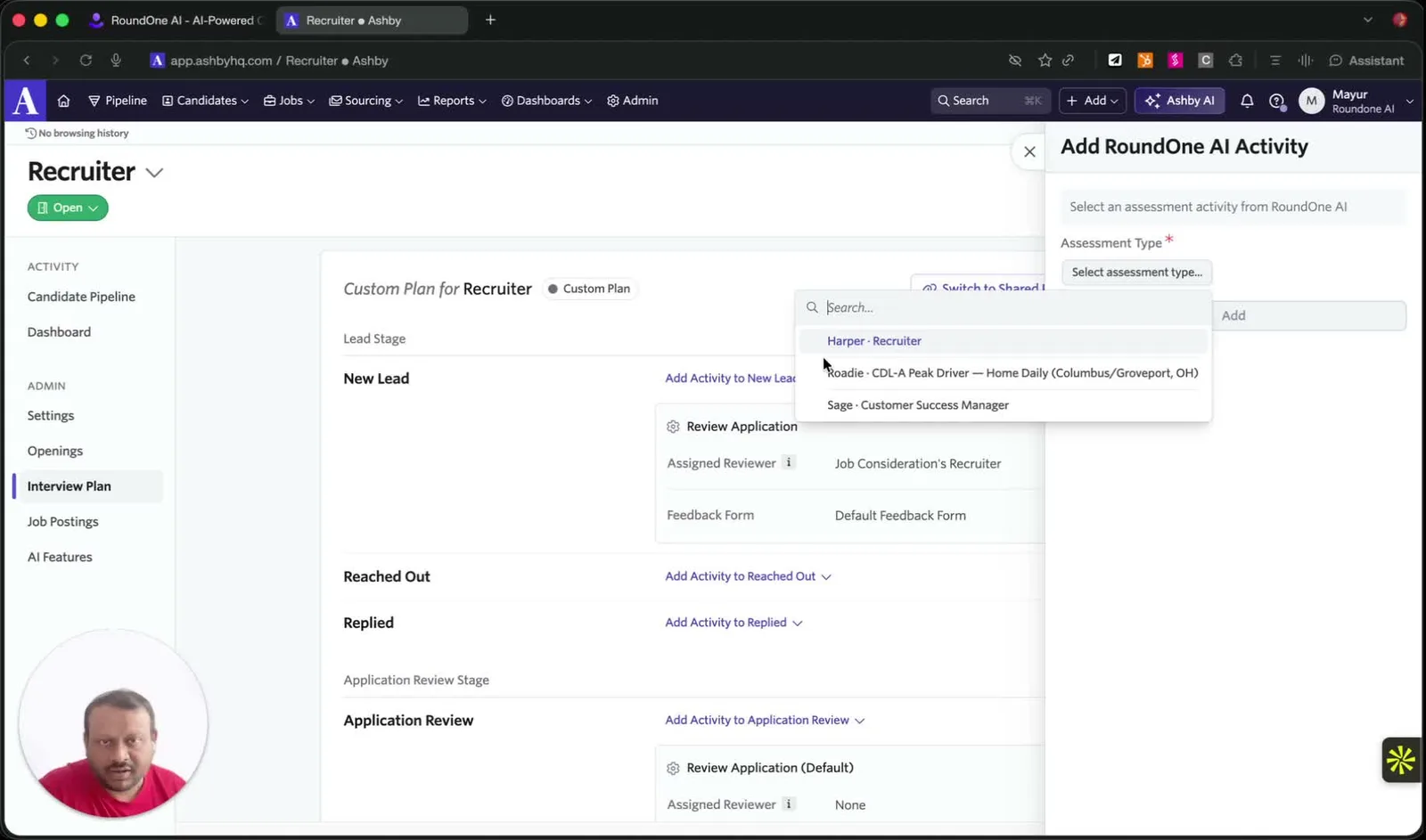
Open a job in Ashby, go to Interview Plan, and on the stage where you want the screening click Add Activity. Under Integrations, choose RoundOne AI.
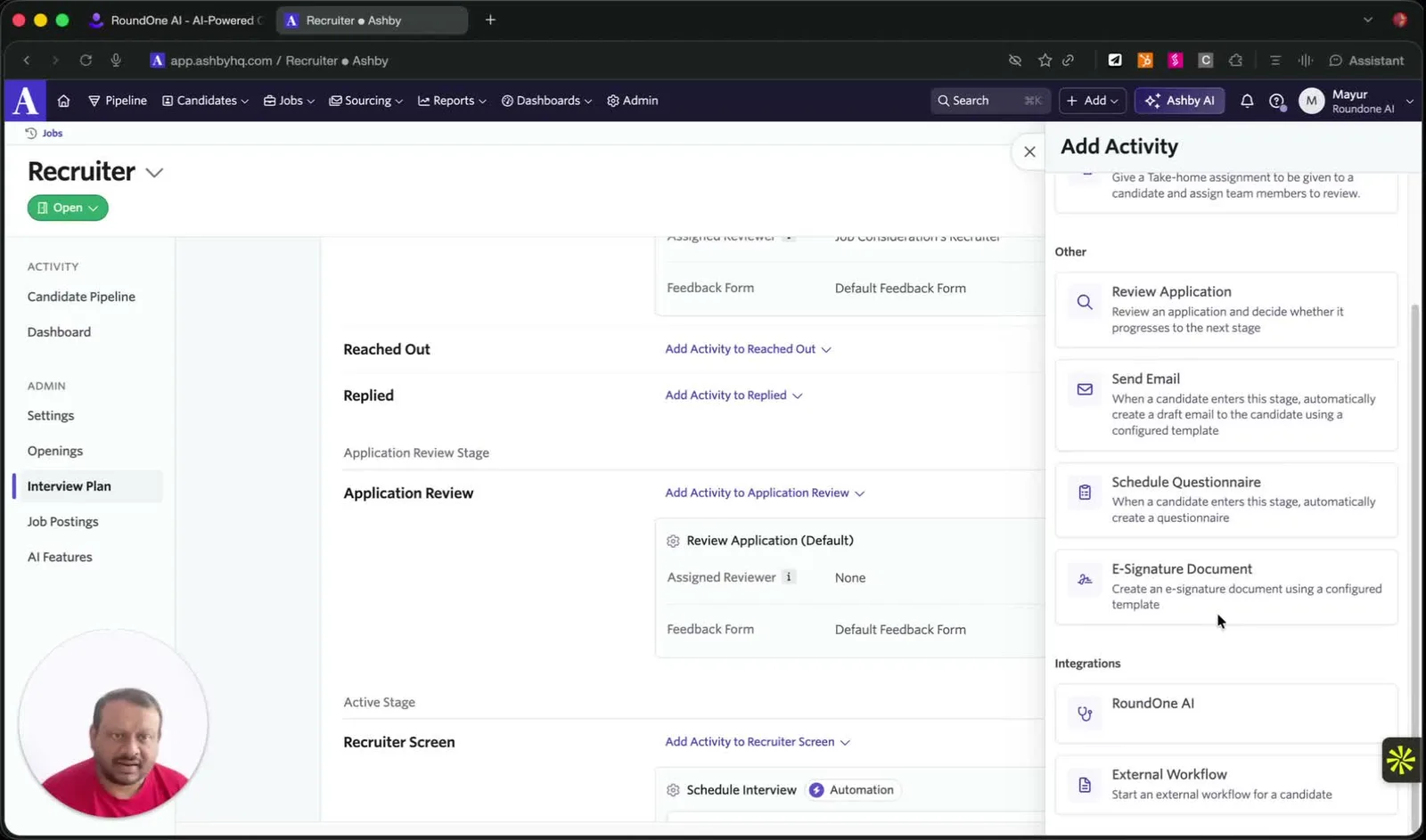
In the Add RoundOne AI Activity panel, open Assessment Type and pick the RoundOne agent for this role, then click Add. The list shows the active agents in your RoundOne organisation, so create the agent in RoundOne first if it is not there.
Order a screening for a candidate
When a candidate reaches that stage, open their profile. Under Activities & Progress you will see RoundOne AI Assessment with the agent's name beneath it. Click Start Assessment.
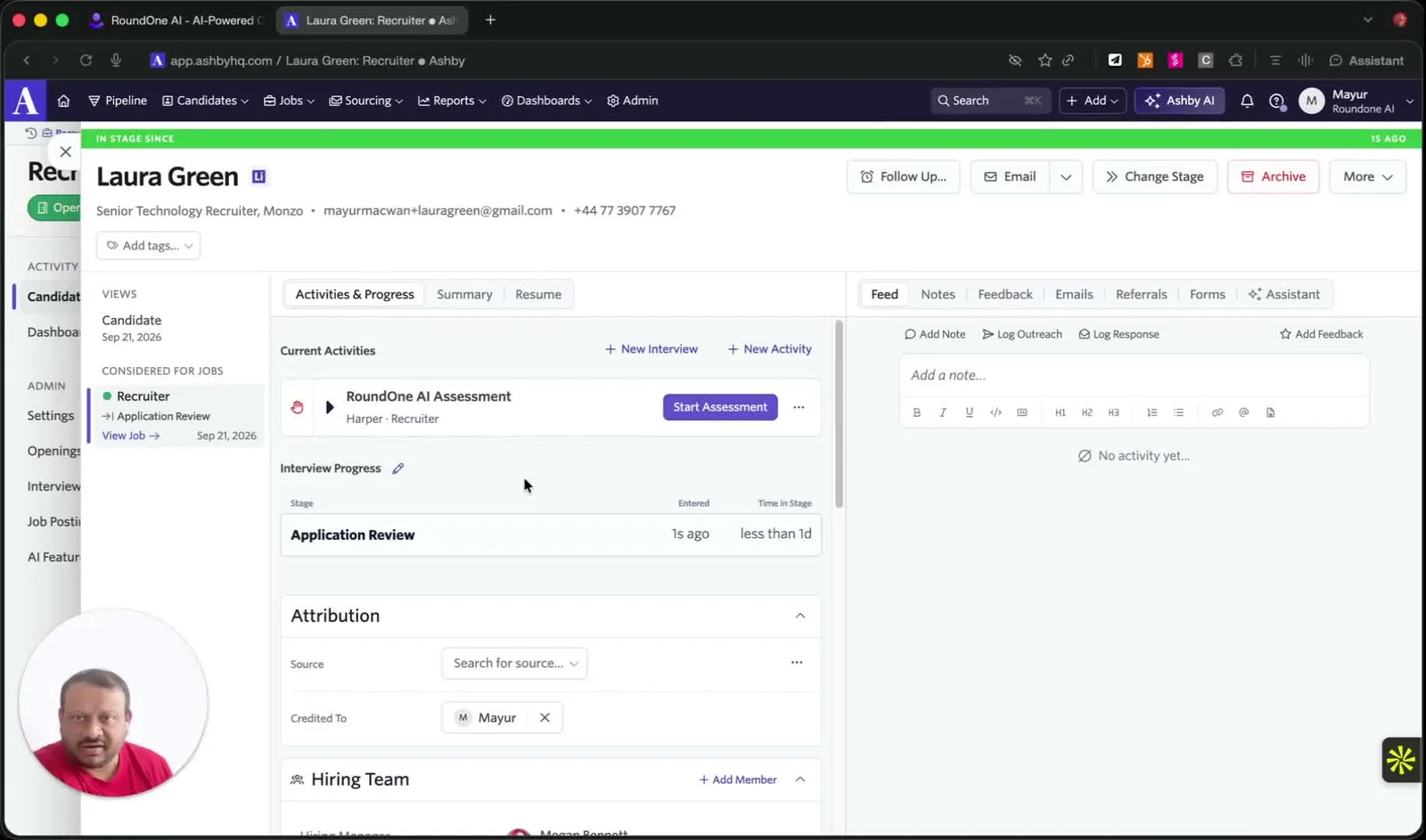
Within a few seconds:
- RoundOne creates the candidate under the agent, pulls their resume from Ashby, and emails them the screening invitation.
- The activity on the candidate shows RoundOne status: Invited with a View in RoundOne AI link that opens the candidate in the agent's pipeline.
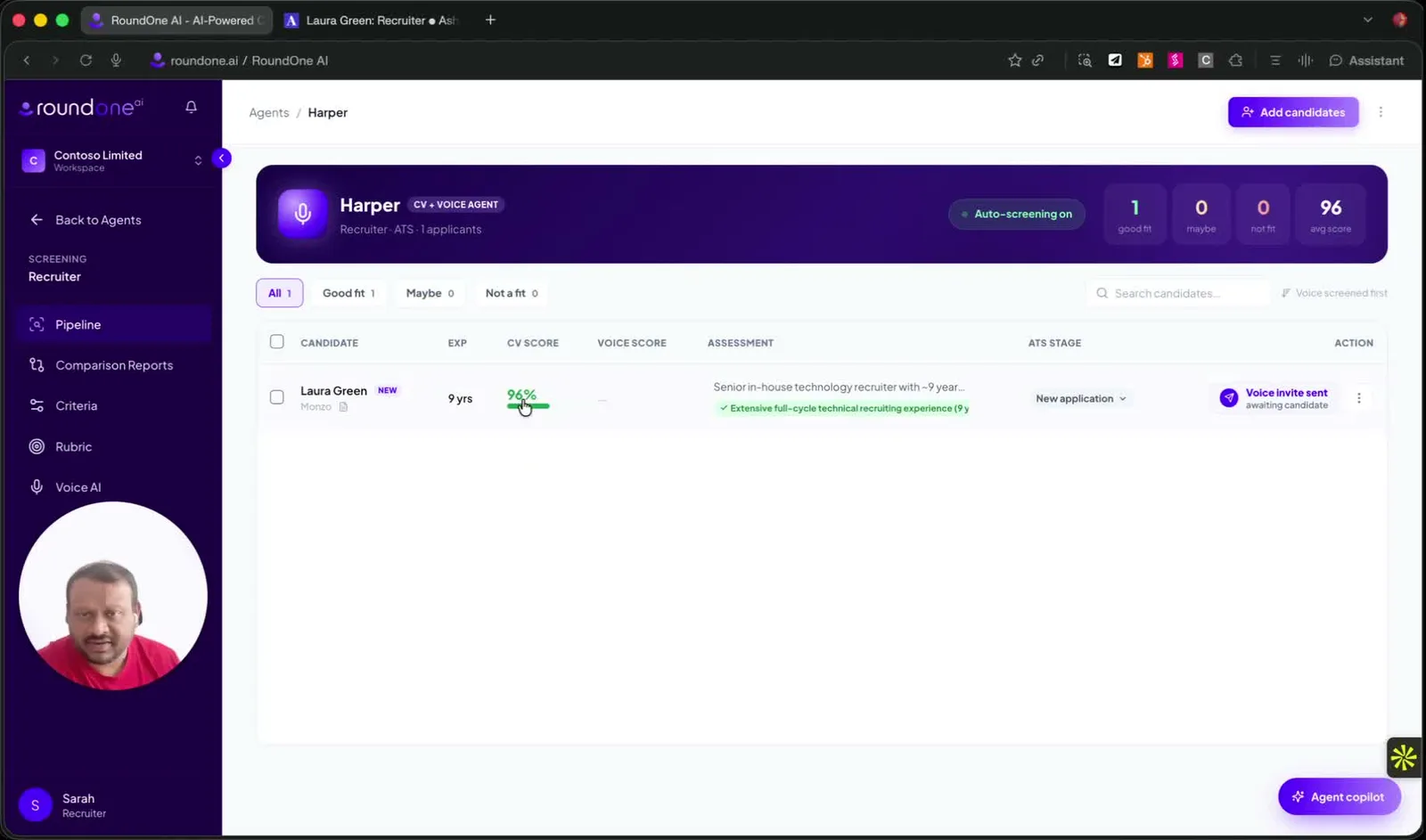
- If the agent screens CVs first, a CV match (interim) figure appears while the voice screening is still pending. It is not the final result.
In RoundOne, the agent's pipeline shows the candidate with their CV score and the invitation status, so you can follow progress from either side.
Read the result
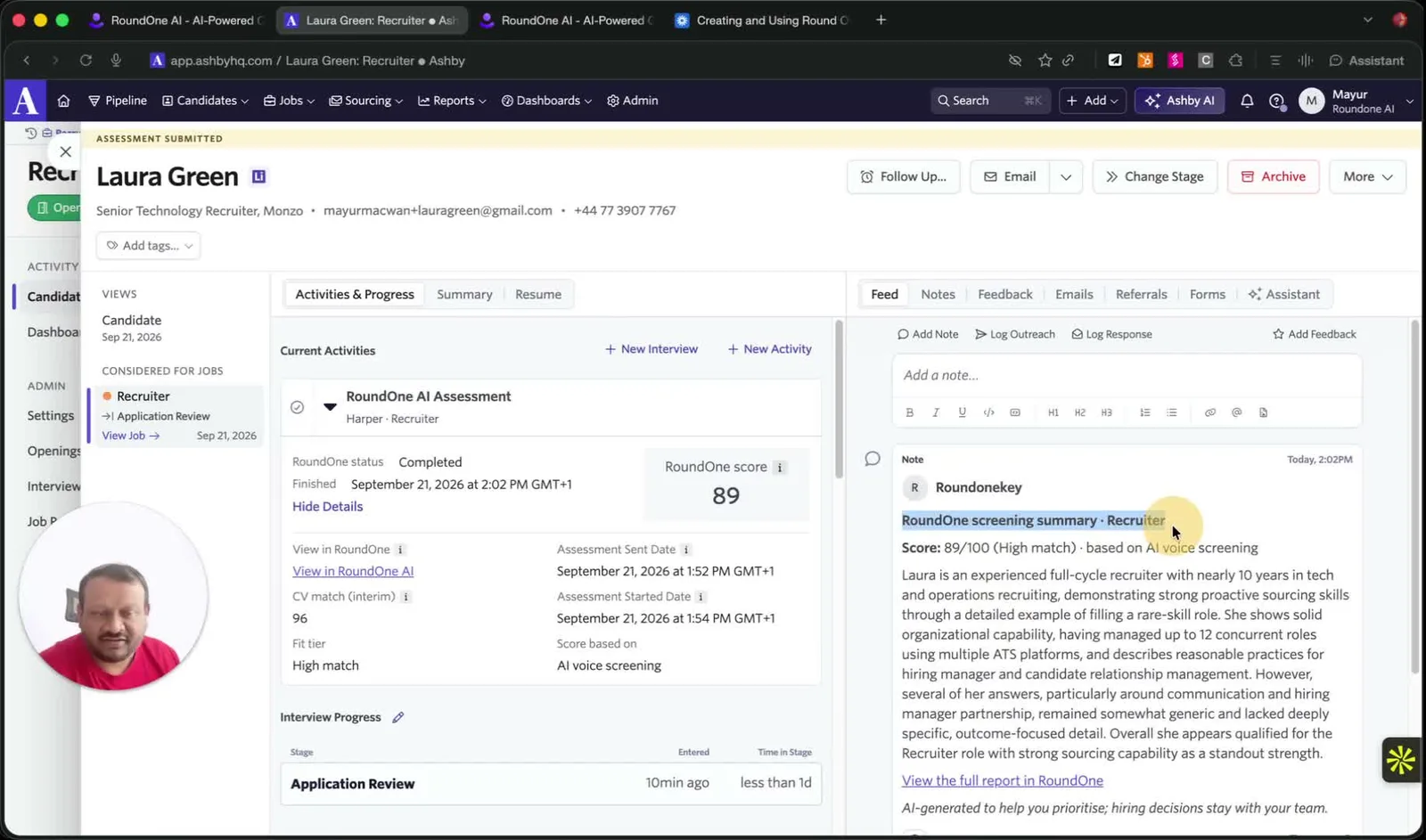
When the candidate completes the screening, the activity shows Completed, the RoundOne score out of 100, the Fit tier and what the score is based on. The interim CV match stays visible beneath it, so you can see both results. A note also lands in the candidate's feed with the score and the screening summary, so the hiring team sees it without leaving Ashby. View in RoundOne AI on the activity and View the full report in RoundOne in the note both open the detailed report.
RoundOne prioritises; your team decides
Scores and summaries help you decide who to talk to first. RoundOne never marks a candidate as rejected in Ashby, and nothing moves stages on your behalf.
Cancel or re-order
Cancelling the assessment in Ashby stops the candidate's reminders and blocks the invitation link. You can start a new assessment for the same candidate afterwards. Starting a second assessment while one is still open is refused, so a candidate is never screened twice by accident.
If you also sync Ashby through the standard ATS sync
Some organisations connected Ashby earlier through RoundOne's standard ATS sync, which imports every applicant automatically. When you activate the native connection, applicant imports for Ashby stop so candidates are not created twice. Candidates now enter RoundOne when a recruiter orders a screening in Ashby. Jobs still sync as before.
Troubleshooting
- "Error fetching custom fields" in the Ashby card. Ashby cannot reach RoundOne with the key you pasted. Check the RoundOne key in Ashby matches the one shown in RoundOne, or rotate it and paste the new one.
- Activate is greyed out. The Ashby API key has not been verified. Under step 3, paste the key Ashby generated (not the
ro_ashby_key) and Save. - A recruiter sees "not activated yet" when starting an assessment. Click Activate in RoundOne.
- "This candidate is already being assessed". An assessment is still open for that candidate and agent. Cancel it in Ashby or wait for it to finish.
- The result is missing after the candidate finished. Scores can take a minute to settle after the call ends. If a delivery to Ashby failed, the RoundOne card shows a Retry button.
Pausing or disconnecting
Pause stops Ashby from ordering new screenings while keeping results flowing for screenings in progress. Disconnect cancels anything still in progress, tells Ashby, removes the saved Ashby API key, and keeps every candidate and result already in RoundOne.
Need help? Email support@roundone.ai.