

Read CV scores and act on candidates
Understand the CV score, tiers and score breakdown on an agent's pipeline, then invite candidates to a voice screen, record a fit decision, view the CV, or send personalised feedback.
Once an agent has screened a batch of CVs, its Pipeline page ranks every candidate with the evidence behind each score. This guide walks the table, the candidate drawer and the actions you take from them. RoundOne scores and prioritises; every decision on this page is yours.
Before you begin
- An agent with scored candidates. See Add candidates by uploading CVs.
- For voice invites, an active plan or free trial. CV screening and everything else here is free.
Reading the table
Each row is one candidate. From left to right you see the name and current employer with a small CV icon, years of experience, the CV score as a percentage, the Voice score once a voice screen has happened, a one-line Assessment with the standout strengths and gaps, the ATS stage, and an Action column.
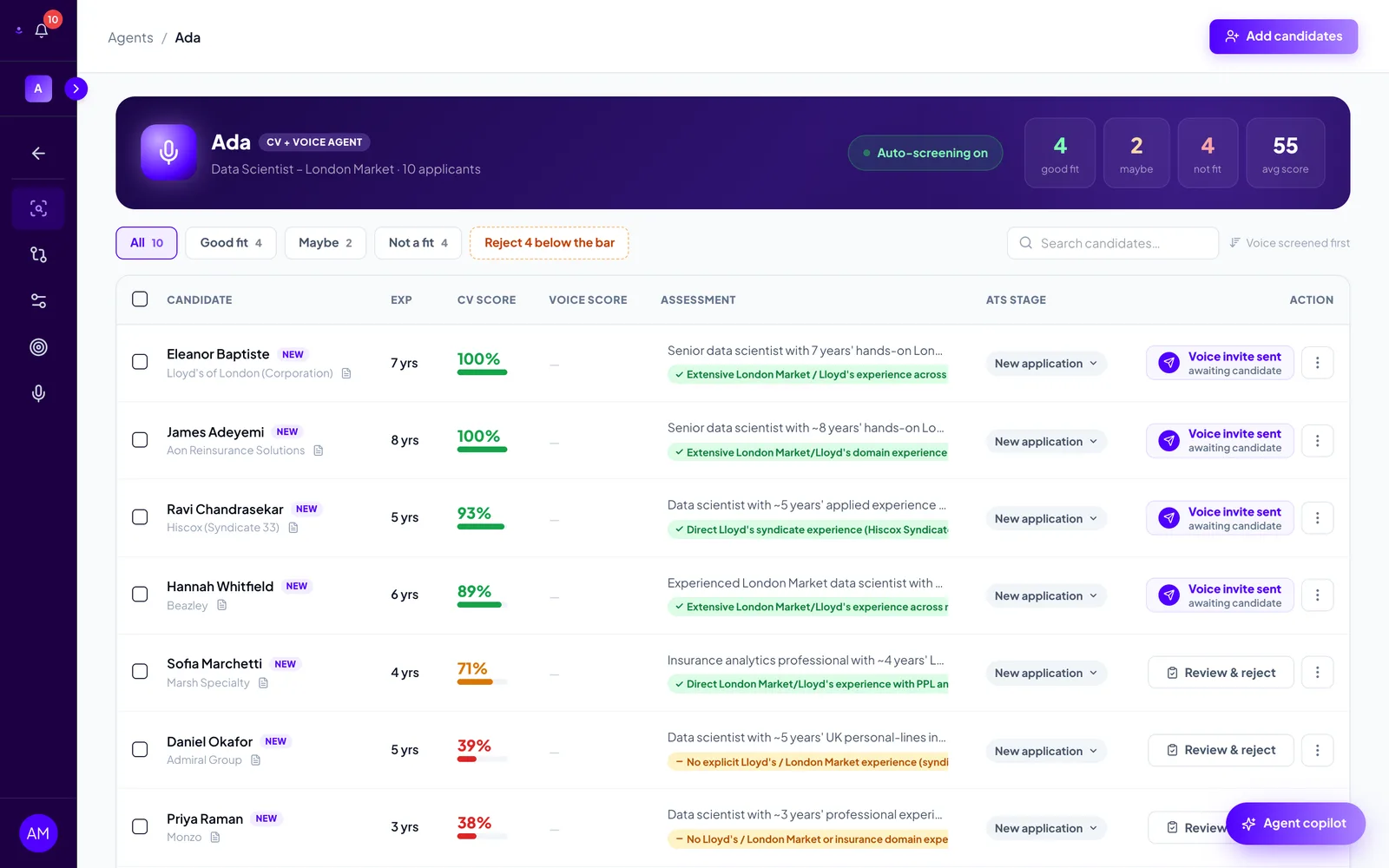
Score tiers. The colour of the score and the tabs above the table follow three bands:
| Tier | CV score | Meaning |
|---|---|---|
| Good fit | 75 and above | Strong evidence on the requirements. With auto-advance on, these candidates are invited to the voice screen automatically. |
| Maybe | 40 to 74 | Partial evidence, or a must-have that could not be verified from the CV. Held for your decision. |
| Not a fit | below 40 | Little evidence on the requirements, or a must-have clearly not met. |
Use the All, Good fit, Maybe and Not a fit tabs to filter, and the search box to find someone by name. Once a candidate completes a voice screen, the voice score takes over as their headline score and they sort to the top.
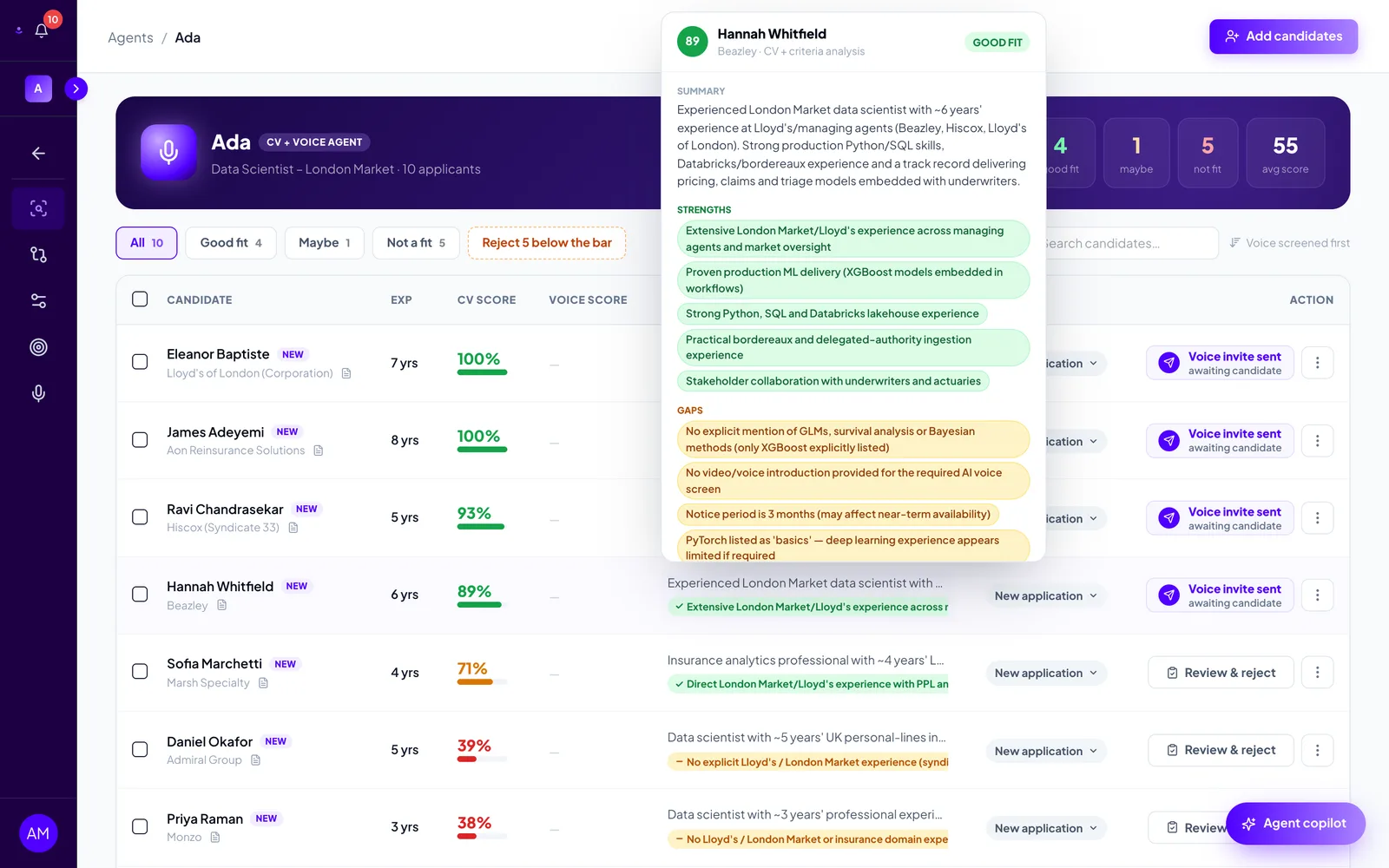
Hover for the summary. Hold the pointer over the assessment text to see the full summary, strengths and gaps without opening the candidate.
Actions on a row
The Action column shows the next step the agent suggests: AI voice screen for strong matches who have not been invited yet, Review & reject for candidates below the bar, or a status chip such as Voice invite sent once something is in motion.
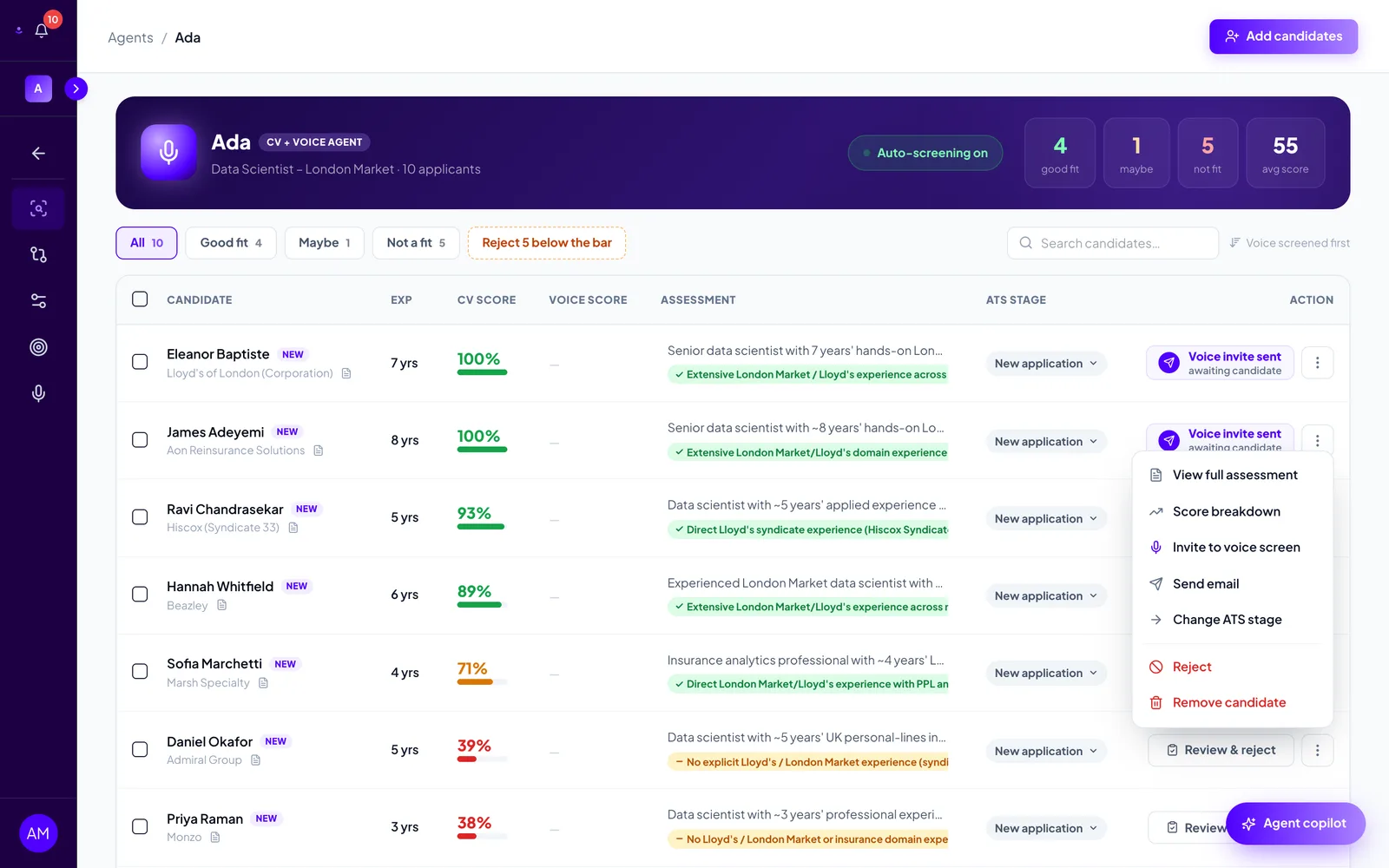
The ⋮ button at the end of a row opens the full menu:
- View full assessment and Score breakdown open the candidate drawer.
- Invite to voice screen sends the candidate an email with their unique screening link. It becomes Resend invitation once sent.
- Send email opens a blank email to the candidate.
- Change ATS stage moves them in your connected ATS.
- Reject opens the review and feedback dialog described below.
- Remove candidate deletes them from this agent permanently.
Inviting a candidate to a voice screen
Choose Invite to voice screen from the row menu, or click AI voice screen in the Action column. On a CV-only agent a confirmation appears first, explaining that voice screens use one credit per completed call and offering to turn on Auto-advance to voice for future candidates. On a CV + Voice agent the invite goes straight out.
The candidate receives an email with their personal link and takes the call in their own time. The row shows Voice invite sent with awaiting candidate underneath, and the drawer's primary button changes to Resend invitation.
See how a score was calculated
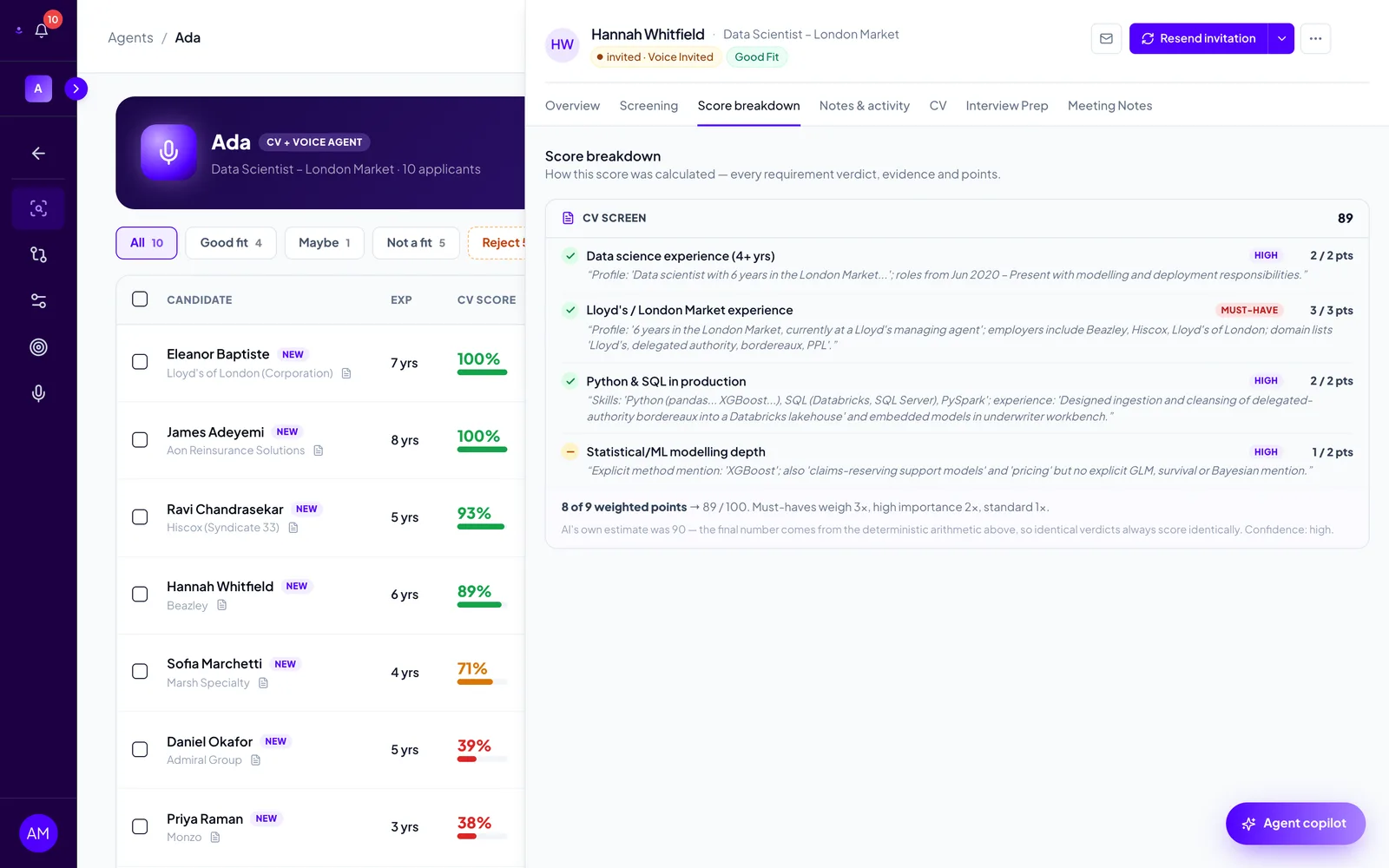
Choose Score breakdown from the row menu. The drawer opens on the Score breakdown tab, which lists every requirement with a verdict, the evidence quoted from the CV, and the points earned. Must-haves weigh three times a standard requirement and high-importance ones twice. The line under the table shows the arithmetic, so identical verdicts always produce identical scores.
A − verdict means the CV did not give enough evidence either way. Missing evidence is never counted as a fail, but an unverified must-have caps the score at 74 until the voice screen confirms it.
Review the candidate and record your decision
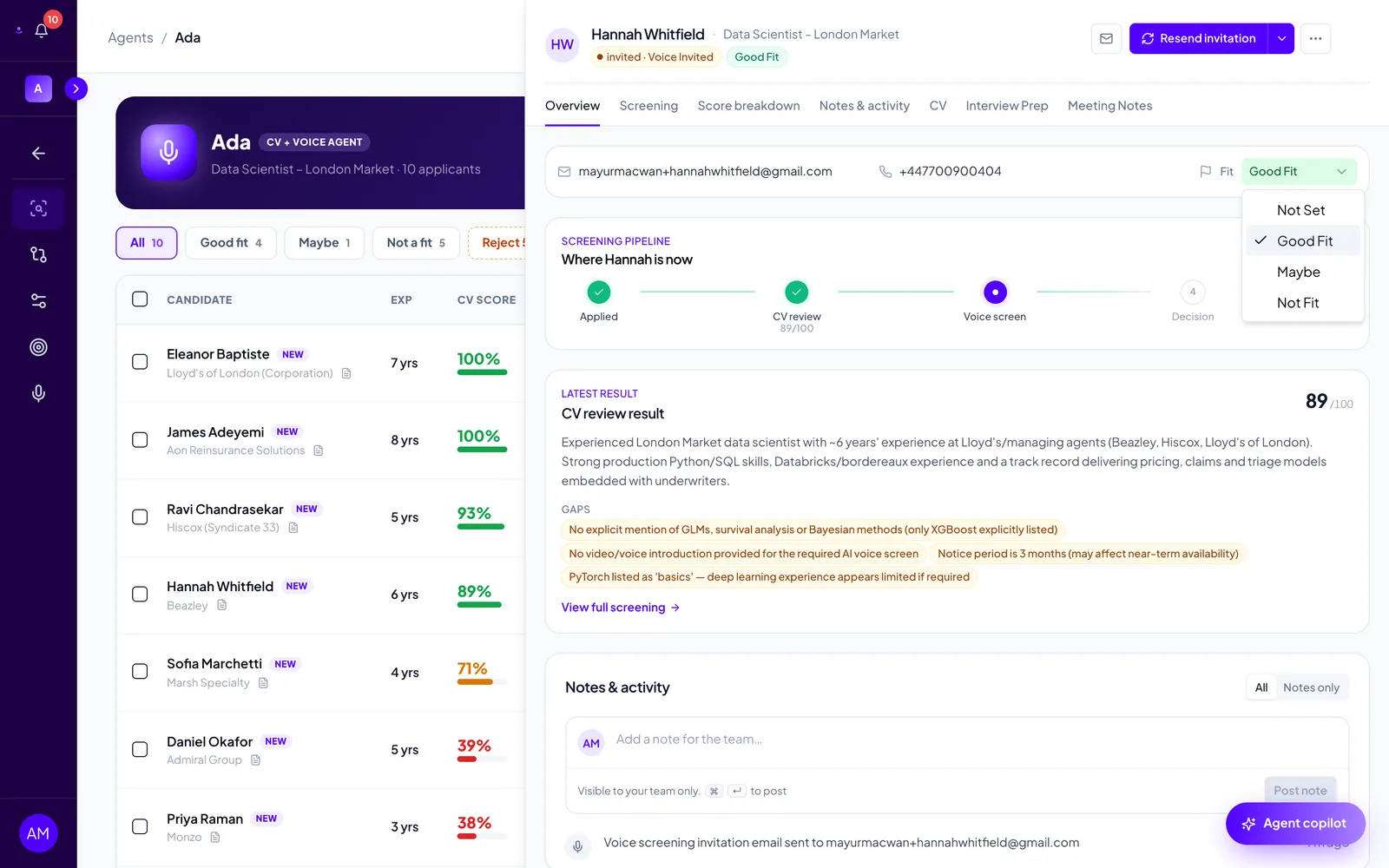
Switch to the Overview tab. It shows the candidate's contact details, where they are in the Screening pipeline, and the Latest result with the score out of 100, the summary and the gaps.
Use the Fit dropdown to record your own call: Good Fit, Maybe or Not Fit. Your choice overrides the score for the tabs and counters, so a candidate you mark Good Fit moves into the Good fit tab whatever their number says. The score itself does not change. Notes for your team go in Notes & activity at the bottom; candidates never see them.
View the CV
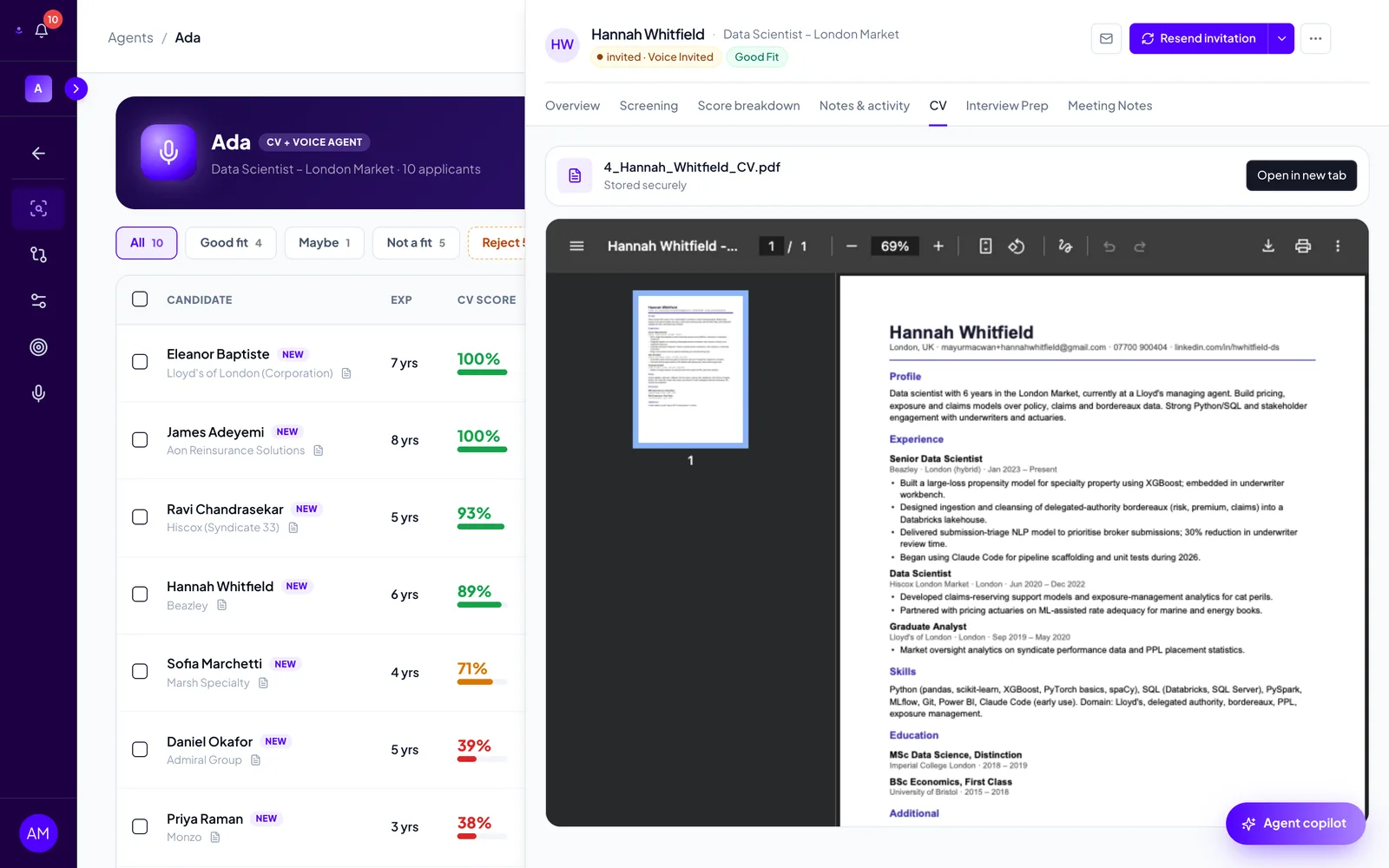
Click the small CV icon under a candidate's name in the table, or open the CV tab in the drawer. PDF and Word files preview inline, with Open in new tab for the full file. Candidates added without a CV show an Upload CV button here instead.
Send personalised feedback and close a candidate out
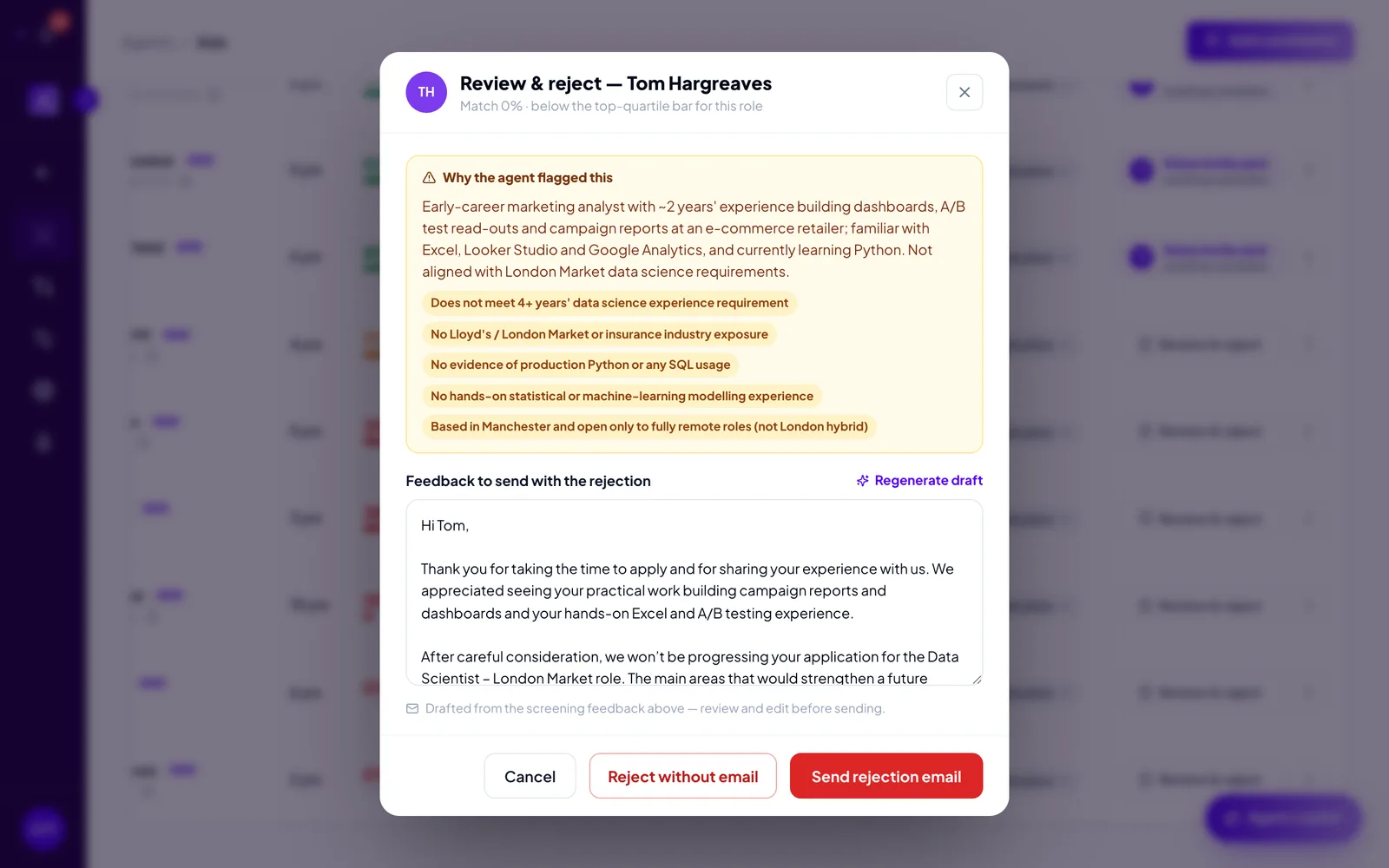
For candidates below the bar, click Review & reject in the Action column or choose Reject from the row menu. The dialog shows Why the agent flagged this: the summary and the specific gaps against your requirements, so you can check the reasoning before you decide.
Below it, Feedback to send with the rejection is drafted for you from those gaps: a short, personal note that thanks the candidate and names what would strengthen a future application. Edit it freely, or click Regenerate draft for another version. Then choose:
- Send rejection email to email the note and mark the candidate as not a fit.
- Reject without email to record the decision only.
- Cancel to leave the candidate as they are.
The row then shows a Rejected badge with feedback sent when an email went out. To send the same note to everyone below the bar at once, use Reject n below the bar above the table.
Comparing candidates
Tick two or more rows and a bar appears at the bottom with Compare selected. It produces a side-by-side comparison report, which also appears under the agent's Comparison Reports page. Candidate comparison is included in the Team plan. For quick questions across the pipeline, the Agent copilot can compare candidates in conversation on any plan.
Troubleshooting
- The Action column is cut off. The table scrolls sideways. Collapse the sidebar with the arrow next to your workspace name, or widen the window.
- "Invite to voice screen" shows a padlock. Your workspace has no active plan or trial. Click it to start the free trial. Invites can still be sent, but candidates cannot start the call until the plan is active.
- A candidate is stuck on "Voice invite sent". They have not taken the call yet. Use Resend invitation from the row menu after a few days, or send them a note with Send email.
- I marked the wrong fit. Open the drawer and pick another value from Fit. Choose Not Set to fall back to the score.
- I rejected someone by mistake. Their fit is set to Not Fit and their stage to Rejected, but nothing is deleted. Open the drawer and change Fit back; the email cannot be recalled.
Add candidates by uploading CVs
Upload a batch of CVs to a screening agent, check the details RoundOne extracts, and watch every candidate get a CV score within minutes.
Ask the agent copilot about your pipeline
Open the copilot on an agent's pipeline to get a summary, compare candidates, find who is missing a requirement, open a candidate's report, or record a decision, all in plain English.