

Ask the agent copilot about your pipeline
Open the copilot on an agent's pipeline to get a summary, compare candidates, find who is missing a requirement, open a candidate's report, or record a decision, all in plain English.
Every agent's Pipeline page has a copilot that answers from the live pipeline. Ask it how the role is looking, which candidates are strongest, or how two people compare, and it reads the same scores and evidence you see in the table. Ask it to do something, such as set a fit status or send an invite, and it shows a card for you to confirm before anything changes.
Before you begin
- An agent with scored candidates. See Add candidates by uploading CVs.
- Nothing else. The copilot is available on every plan, on the pipeline page only.
You confirm every action
The copilot never changes a candidate, sends an email or edits the criteria on its own. Anything with an effect appears as a card with a confirm button, and the chat input is paused until you confirm or cancel it.
Steps
Open the copilot
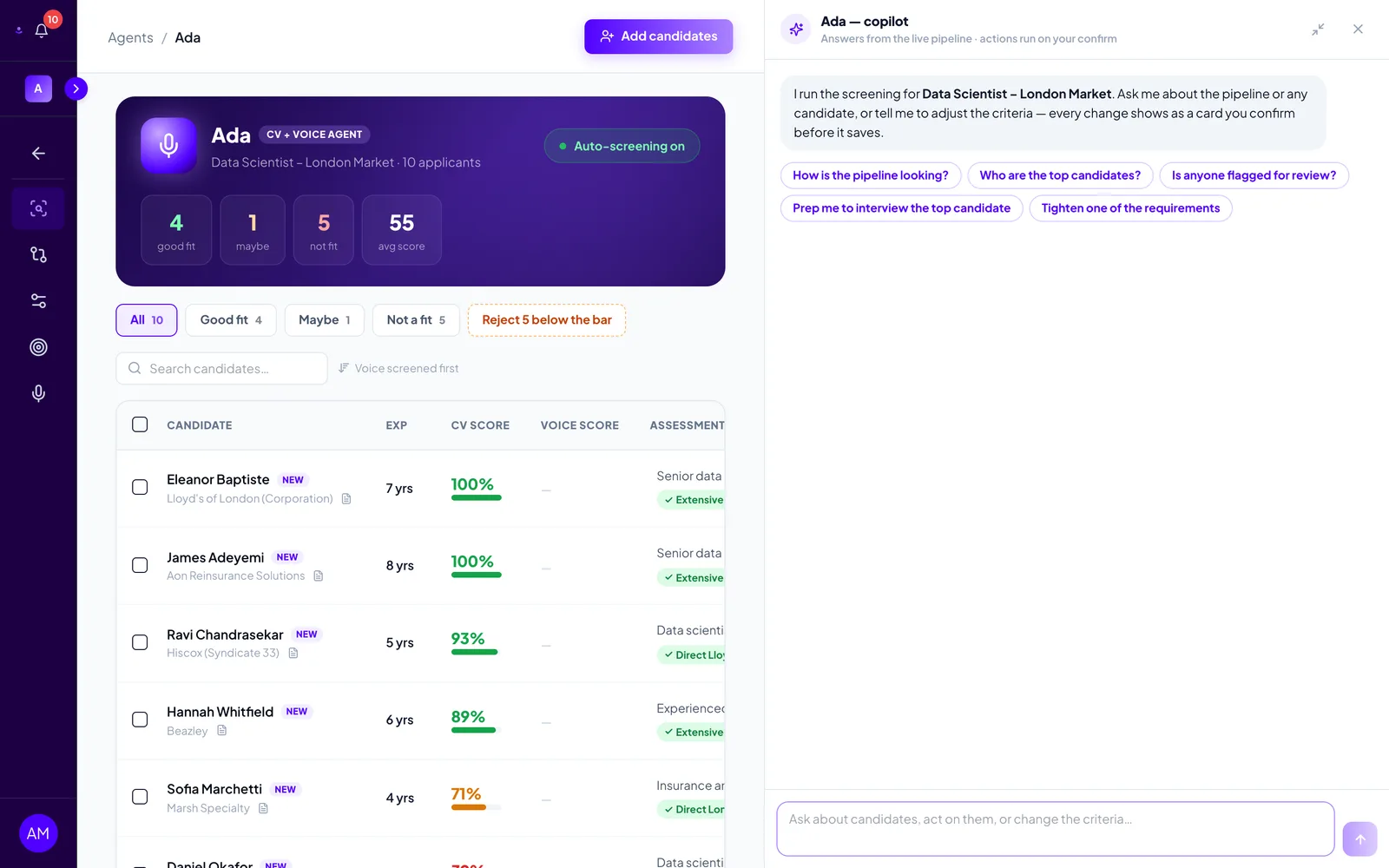
On the agent's Pipeline page, click the Agent copilot button in the bottom-right corner. A rail opens on the right, titled with the agent's name followed by copilot, and the table shrinks to make room. Drag the rail's left edge to resize it, use the arrows in its header to expand it, and the × to close it.
The empty state offers five starter questions. Click one, or type your own question in the box at the bottom and press Enter.
Get a summary of the pipeline
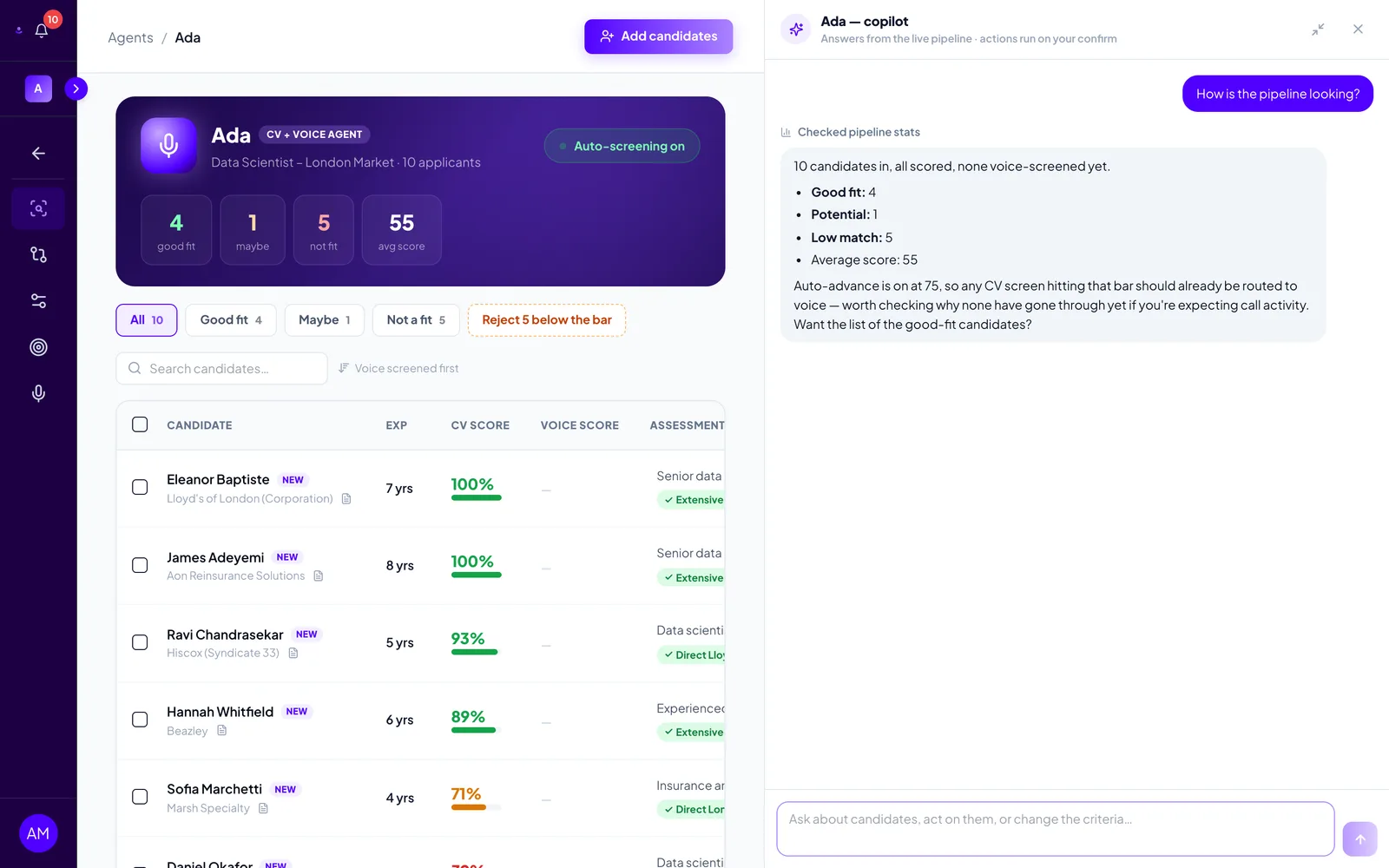
Ask How is the pipeline looking? The copilot checks the pipeline statistics and replies with the totals for each tier, the average score, how many have been voice-screened, and anything worth your attention, such as auto-advance settings or candidates flagged for review.
Grey lines above an answer, such as Checked pipeline stats or Searched candidates, show what the copilot looked at. Everything it reports comes from the candidates already on the page.
Compare candidates
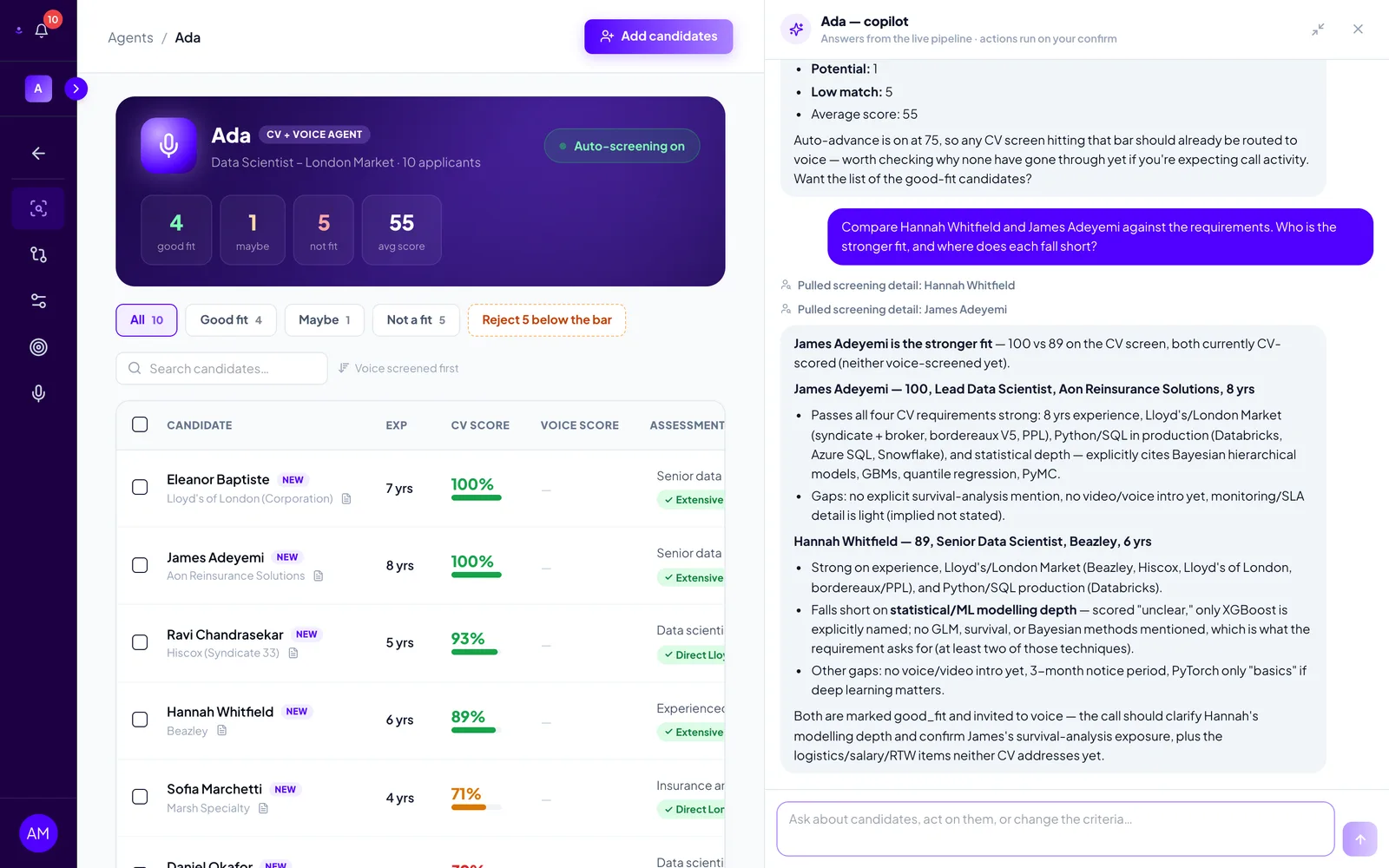
Name two or more candidates and ask how they compare, for example Compare Hannah Whitfield and James Adeyemi against the requirements. Who is the stronger fit, and where does each fall short?
The copilot pulls each candidate's screening detail and answers requirement by requirement: where each one passes strongly, where the evidence was thin, and what the voice screen should probe. Answers use the same verdicts and evidence as the Score breakdown tab, so nothing here is a new judgement.
Find who is missing a requirement
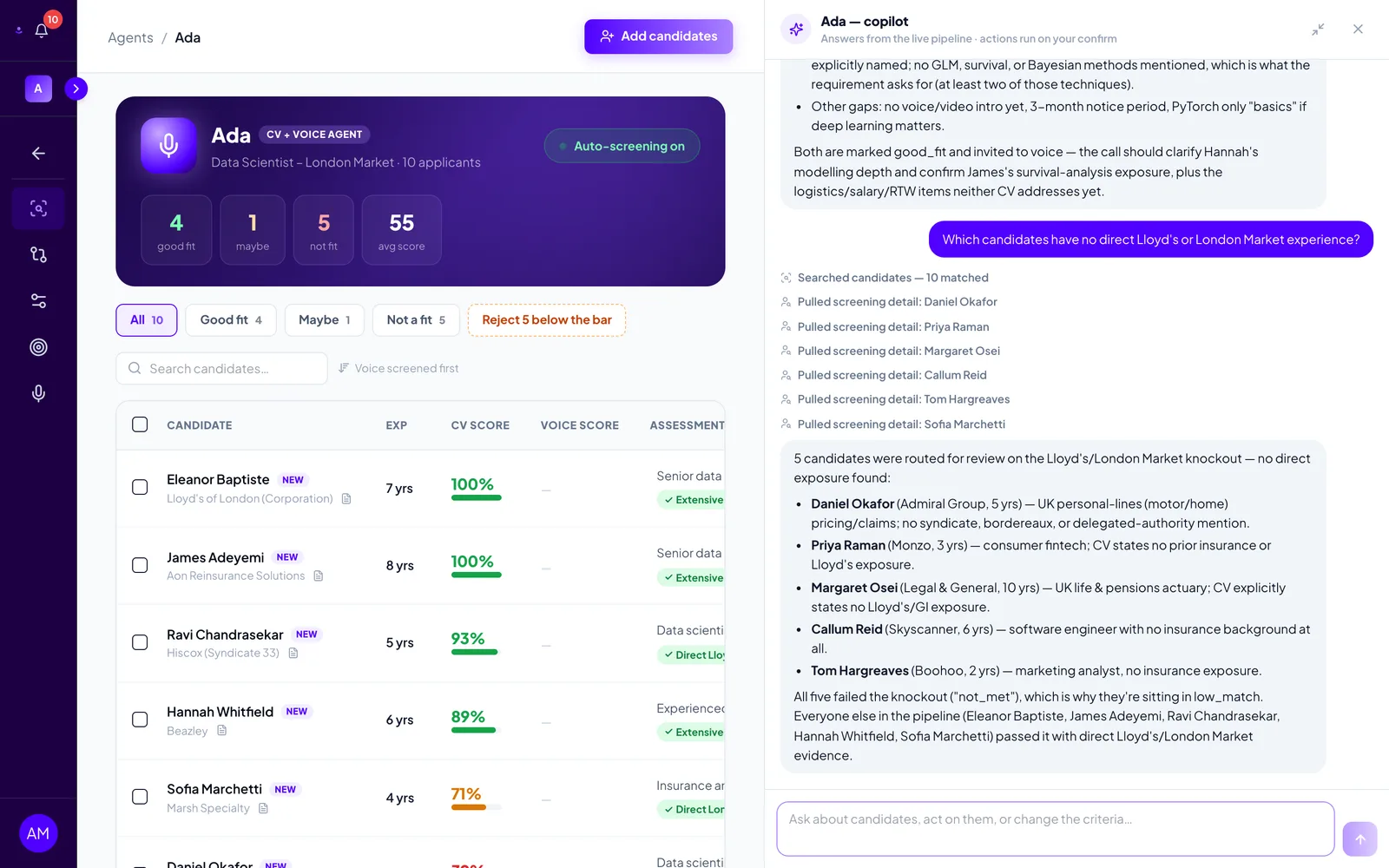
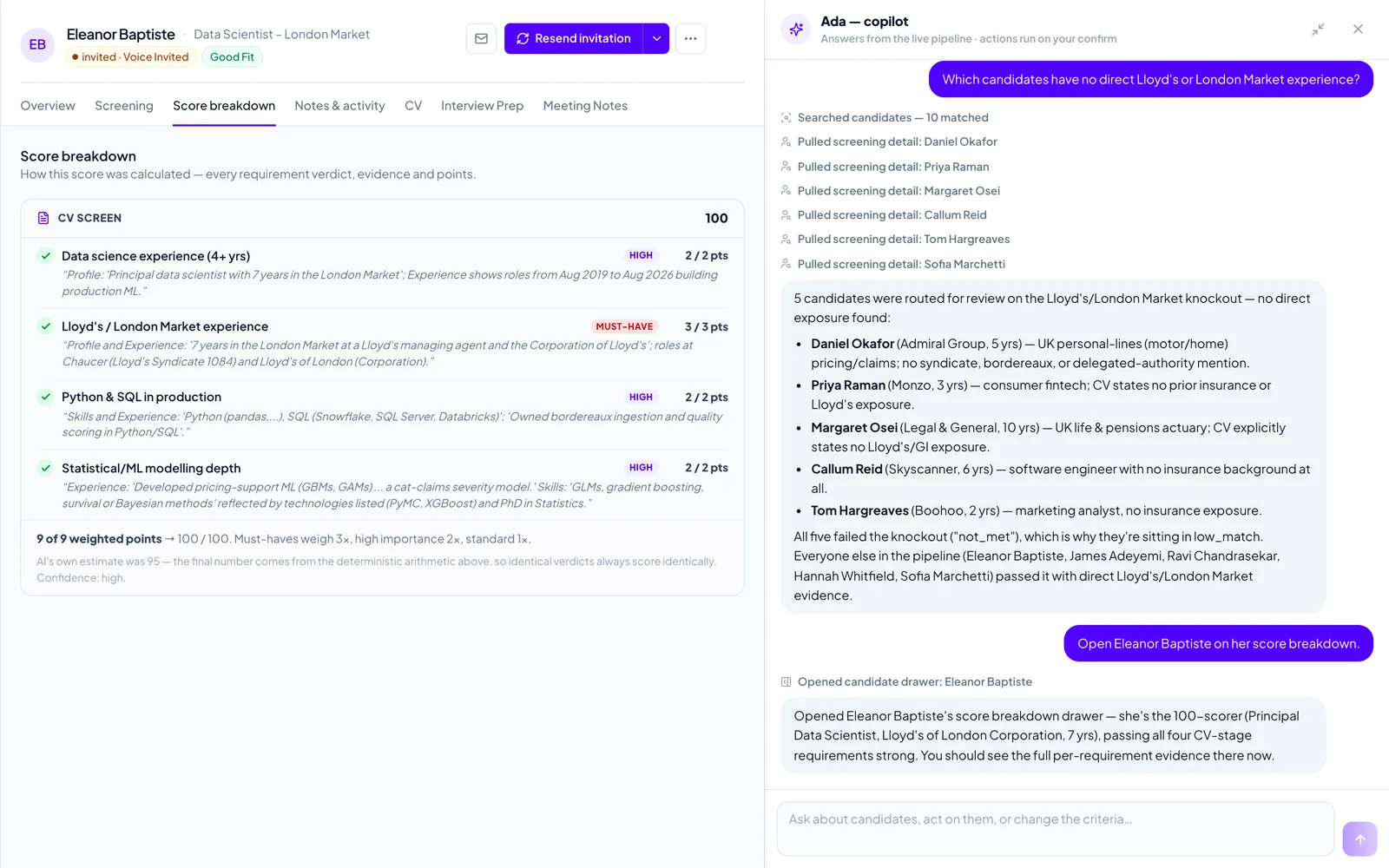
Ask about a specific requirement, for example Which candidates have no direct Lloyd's or London Market experience? The copilot searches the pipeline, reads each candidate's requirement verdicts, and lists who did not meet it with the reason drawn from their CV.
This is the quickest way to sanity-check a knockout: you see at a glance who it held back and why, and can decide whether the requirement is doing the job you intended. Adjust it from the agent's Criteria page or by asking the copilot to change it.
Open a candidate
Ask the copilot to open someone, for example Open Eleanor Baptiste on her score breakdown. The candidate drawer opens beside the rail on the tab you asked for: Overview, Score breakdown, CV, Screening, Notes & activity or Interview Prep. Names inside the copilot's answers are plain text, so ask it to open a candidate rather than clicking on the name.
You can also ask Prep me to interview the top candidate. The copilot generates interview notes and saves them to that candidate's Interview Prep tab.
Record a decision
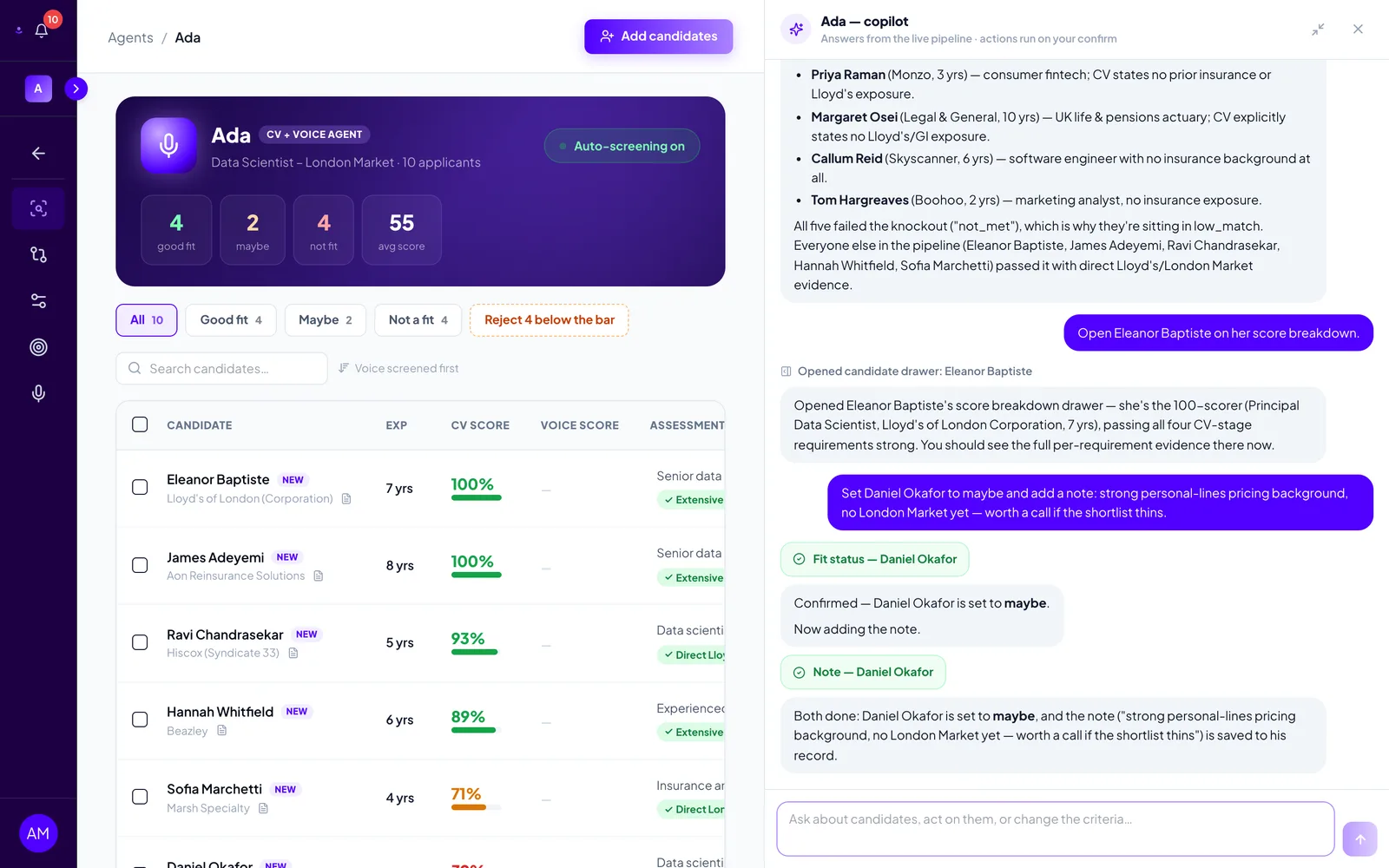
Tell the copilot what to do, for example Set Daniel Okafor to maybe and add a note: strong personal-lines pricing background, no London Market yet. Each action arrives as a card headed Action — waiting for your go-ahead with the details spelled out and a button such as Update fit status or Save note. Nothing happens until you click it. Cancel drops the action.
Actions that leave RoundOne, such as sending a candidate an email or a voice invite, carry an amber note saying so, and voice invites remind you that each completed screen uses one credit.
Once confirmed, the card collapses to a green chip and the table updates straight away. Here the maybe counter went from one to two.
What the copilot can do
| Ask it to | What happens |
|---|---|
| Summarise the pipeline, list the top candidates, find who is flagged | Answers immediately from the live table |
| Compare candidates, explain a score, find who lacks a requirement | Reads each candidate's screening detail, then answers |
| Open a candidate on a tab | Opens the drawer, no confirmation needed |
| Prepare interview notes | Generates them and saves them to the candidate's Interview Prep tab |
| Set a fit status, add a note, move an ATS stage, rescreen | Shows a card you confirm |
| Send an email or a voice invite | Shows a card marked as leaving RoundOne, which you confirm |
| Add, change or remove a requirement, change auto-advance | Shows a Proposed change card; confirming saves it to the agent's criteria and applies to candidates screened from then on |
Good to know
- The conversation is not saved. Closing the rail keeps it for the rest of your visit, but leaving the page or reloading starts fresh.
- It only sees this agent. Each agent has its own copilot with its own pipeline. For cross-agent questions, use the Candidates page or connect an AI assistant.
- Side-by-side reports are a separate feature. Tick candidates in the table and click Compare selected for a formal comparison report, available on the Team plan.
- Voice invites need credits. On a workspace without an active plan or trial, the copilot tells you the invite cannot be sent until one is started.
Troubleshooting
- I cannot see the Agent copilot button. It sits bottom-right on the agent's Pipeline page only, not on Criteria, Comparison Reports or the workspace Candidates page. Close any open dialog; the button is hidden behind it.
- "Something went wrong — try sending that again." Send the message again. If it repeats, reload the page and start a new conversation.
- The input is greyed out. A card is waiting. Scroll up in the rail and click its confirm button or Cancel.
- It cannot find a candidate. Use the name as it appears in the table. The copilot searches names, emails, current roles and employers.
- "Conversation too long — start a new session." Long chats hit a limit. Reload the page to start again.