

Add candidates by uploading CVs
Upload a batch of CVs to a screening agent, check the details RoundOne extracts, and watch every candidate get a CV score within minutes.
The fastest way to fill an agent's pipeline is to drop in the CVs you already have. RoundOne reads each file, extracts the candidate's name and contact details, and screens the CV against the agent's requirements. Ten CVs take about a minute from upload to scores.
Before you begin
- A launched screening agent. See Create your first screening agent.
- The CVs as PDF, DOC or DOCX files, up to 50 per upload. Each CV needs a name and an email address in it; candidates without both cannot be added until you fill them in.
Adding is not inviting
Adding a CV to the pipeline never contacts the candidate. CV screening is free and unlimited, and candidates only hear from you when you invite them to a voice screen or send them an email.
Steps
Open the agent's pipeline
From Agents, open the agent. You land on its Pipeline page. Click Add candidates in the top right, or use the same button in the empty state.
You can also drag files straight onto the page. A Drop CVs to add candidates overlay appears, and the files go through the same steps below.
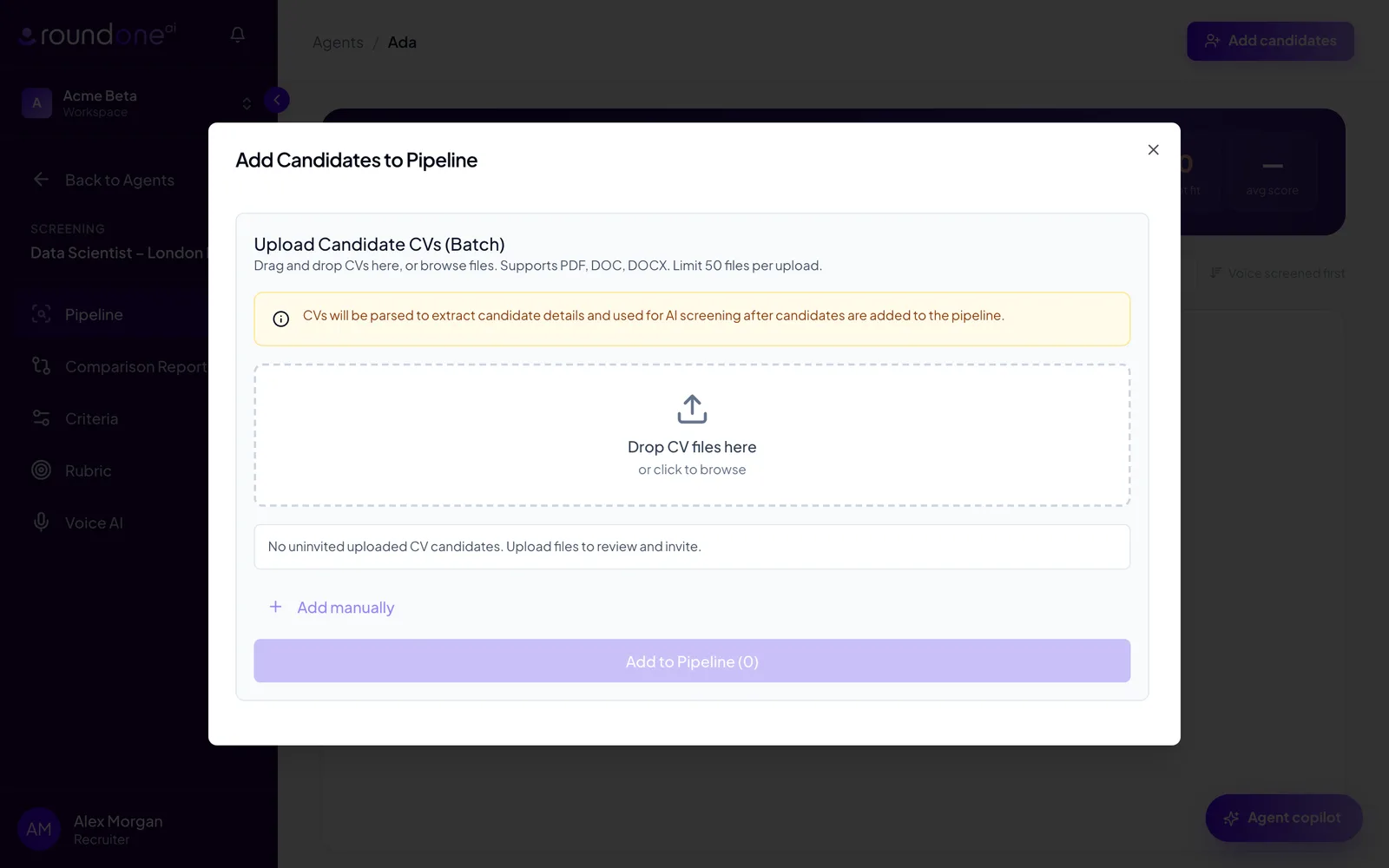
Drop in the CVs
Drag the files onto Drop CV files here, or click it to browse. RoundOne validates, parses and uploads each file in turn and shows the progress under the drop area, then runs AI extraction over the whole batch to pull out names, emails and phone numbers.
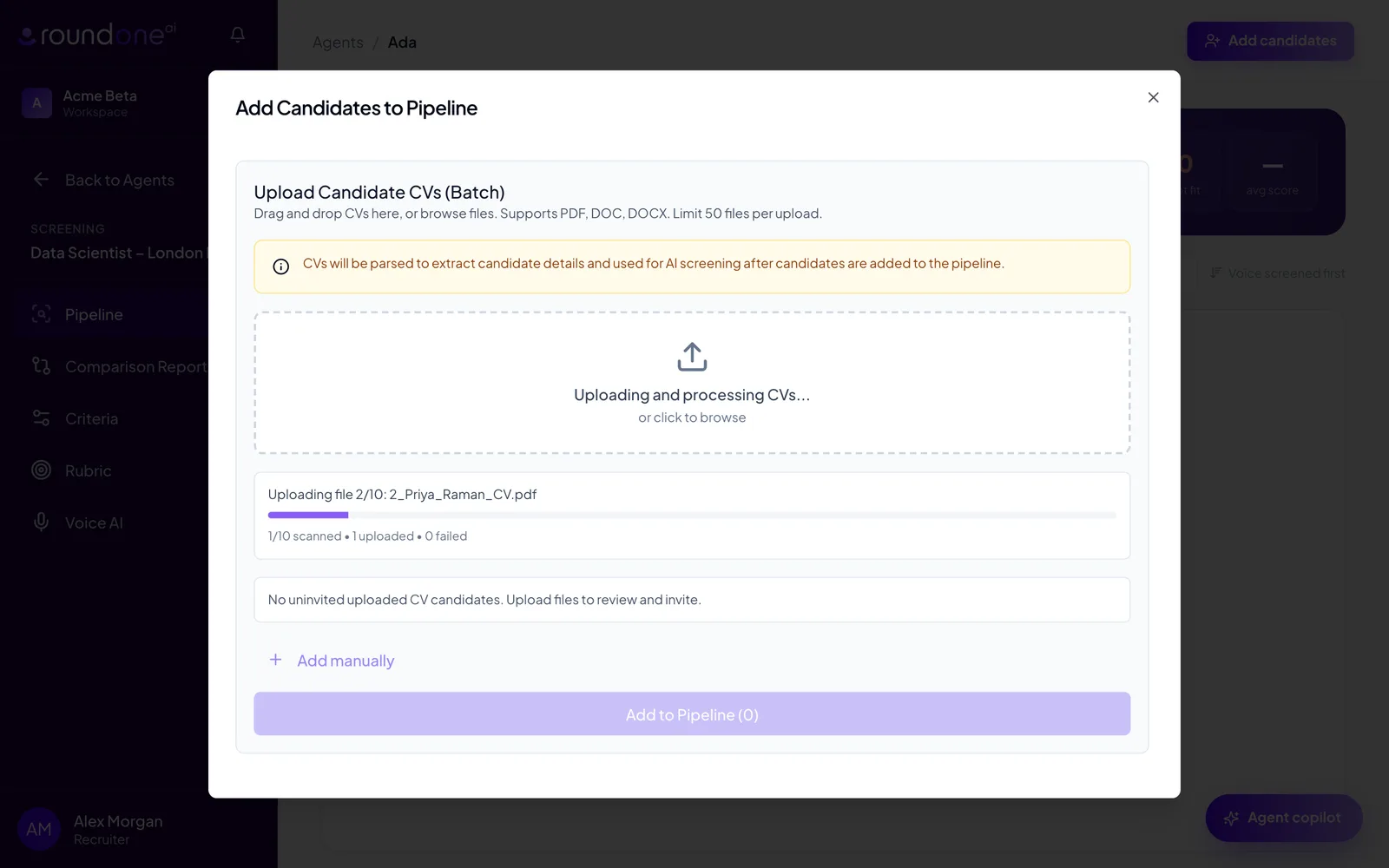
Check the extracted details
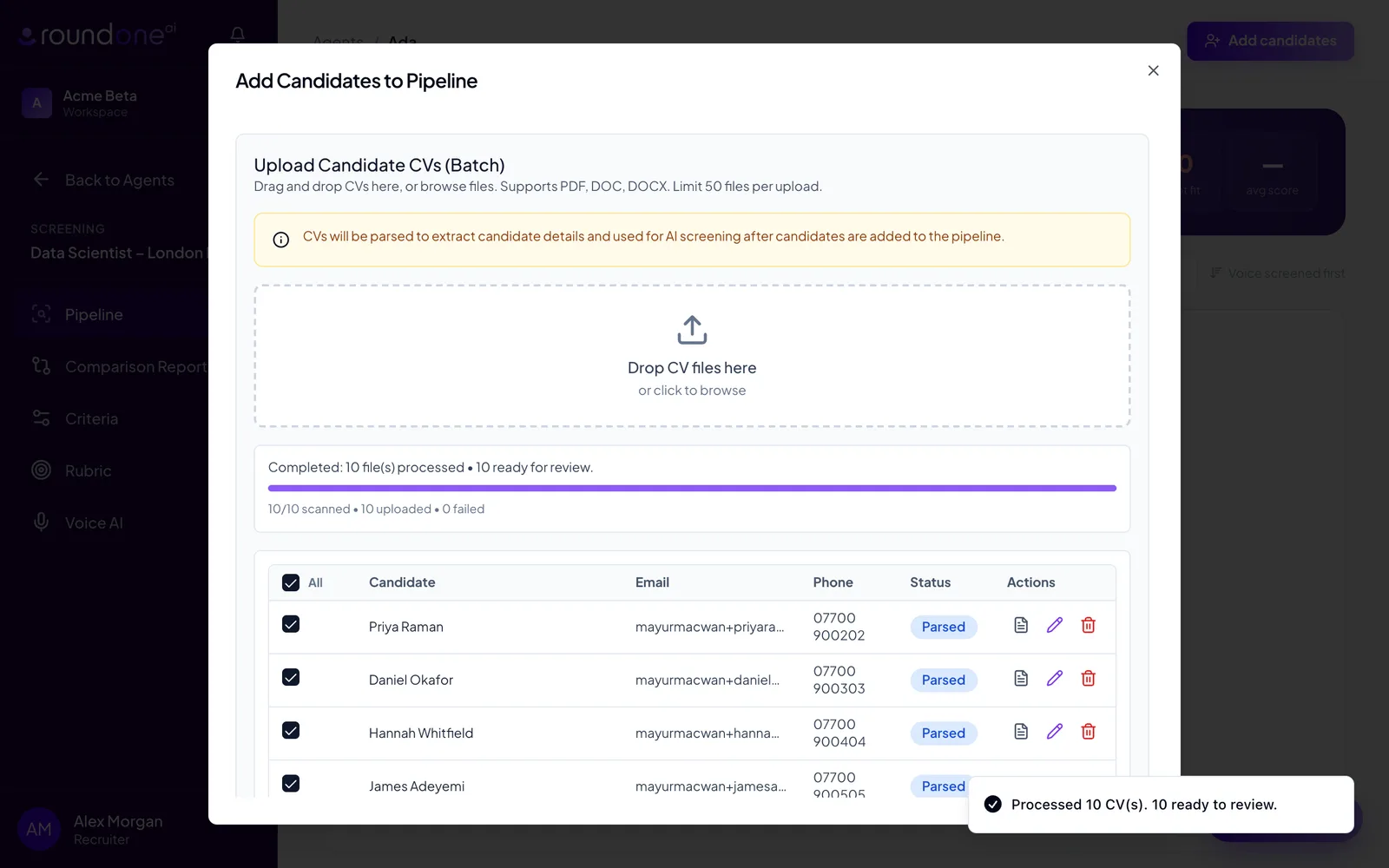
When the status line reads Completed, a table lists every candidate with the name, email and phone number found in the CV and a status badge:
- Parsed: ready to add.
- Needs email/name: the CV had no usable name or email. Click the pencil icon to fill them in.
- Parse issue: the file could not be read. Try a PDF export of the same CV.
Use the icons on each row to view the CV file, edit the details or remove the row. Parsed candidates are ticked automatically, and the All checkbox in the header selects or clears the whole list.
To add someone without a CV, click Add manually and enter their name and email. You can attach a CV to a manual row later.
Add them to the pipeline
Click Add to Pipeline with the count of selected candidates. The dialog closes and the candidates appear in the table with a NEW badge. Each CV score cell shows scoring while the agent works, and the banner above the table reads Evaluating CVs against the job description… with a percentage.
Scores land as they finish. Once every CV is scored the status pill in the banner returns to Auto-screening on.
Candidates whose email already exists in this agent are skipped with a notice, so uploading the same file twice does not create duplicates.
What you see next
The table is sorted with the strongest match at the top. Each row shows the candidate's name and current employer, years of experience, the CV score as a percentage, and a one-line assessment with the standout strengths and gaps. The counters in the banner and the Good fit, Maybe and Not a fit tabs update as scores arrive.
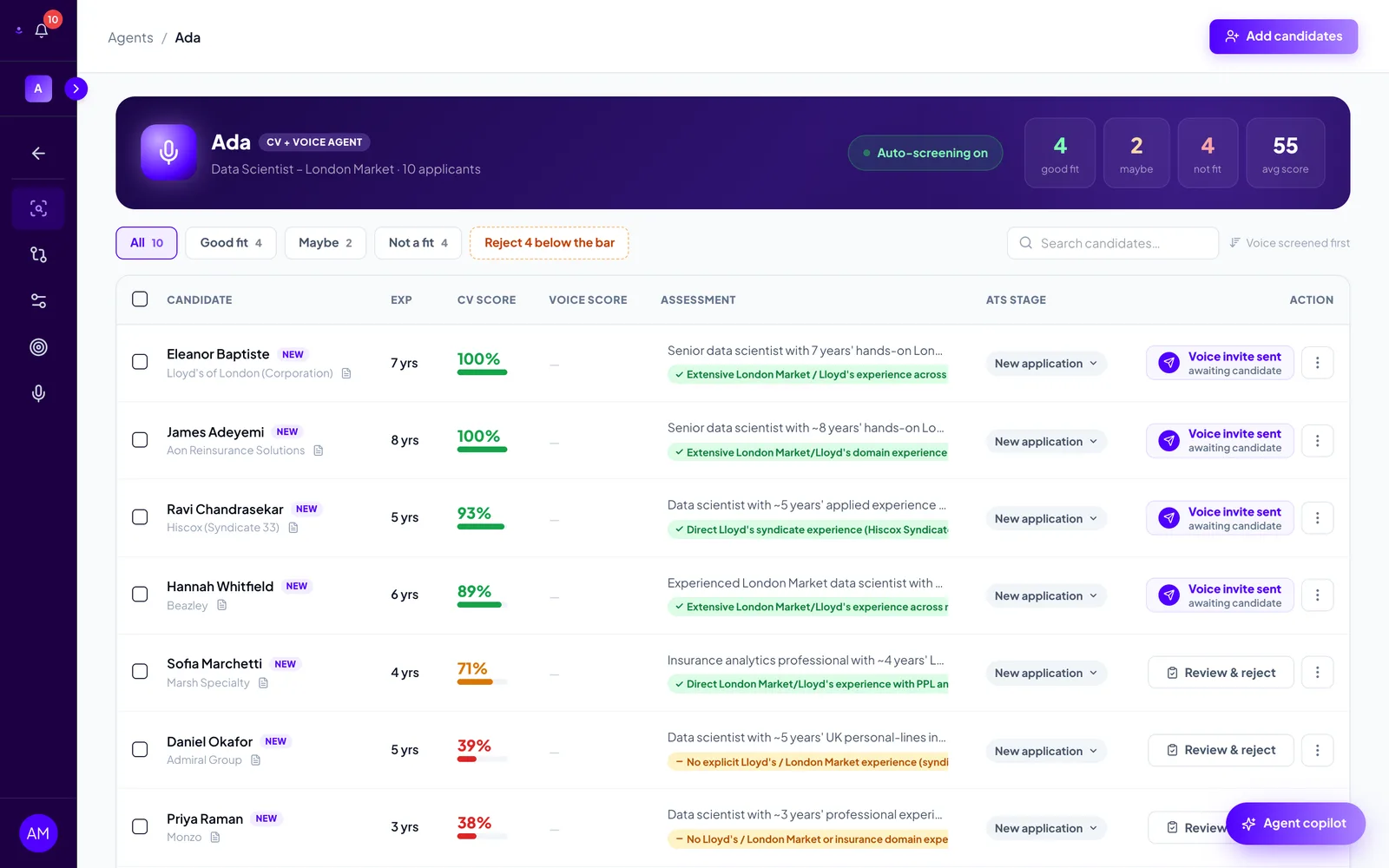
If the agent runs CV + Voice with auto-advance on, candidates scoring at or above the threshold are invited to the voice screen automatically and show a Voice invite sent chip. Everyone else waits for you.
Next: Read CV scores and act on candidates.
Other ways to add candidates
- ATS: connect your applicant tracking system and applicants flow in automatically. Agents created from an ATS role show a Sync from ATS button instead of the drop zone. See ATS integrations.
- Job listing: publish the role as a public listing and candidates apply, and are screened, without you uploading anything.
- AI assistant: if you use RoundOne through Claude or ChatGPT, ask it to add CVs to the agent. See Connect AI tools.
Troubleshooting
- A file shows "Parse issue". Scanned images and password-protected PDFs cannot be read. Export the CV again as a text-based PDF and re-upload it.
- A candidate shows "Needs email/name". The CV had no email address, or the name could not be found. Click the pencil icon, type the missing details and click the tick to save, then select the row.
- "You can upload up to 50 CV files at once." Split larger batches into several uploads.
- A candidate still says "Waiting to score" after a few minutes. Reload the page. Unscored candidates older than two minutes are picked up and rescored automatically.
- "All candidates already exist in this screening." Every email in the batch is already in this agent's pipeline. Find them with the search box above the table.